For futures and algorithmic traders, the NinjaTrader VPS is not just a hosting box—it is part of your execution stack. A poorly optimized NinjaTrader VPS can add millisecond‑level latency, jitter, and missed fills, even if your strategy logic is flawless.
A VPS that runs NinjaTrader 8 in a low‑latency, 24/7, Windows‑Server environment is the only realistic way to trade futures competently at scale. Hardware, network, OS, and NinjaTrader settings must all be aligned to minimize processing delays and connection jitter.
This article assumes you already understand NinjaTrader 8 at a non‑beginner level and are either running or evaluating a NinjaTrader VPS (e.g., Chicago‑proximal, Ryzen‑based, DDR5, NVMe). The goal is to turn that NinjaTrader VPS into a low‑latency, execution‑dense setup that consistently executes your strategy as intended.
1. Why Your VPS Matters for Futures Execution
Before tuning, it helps to be explicit about what a NinjaTrader VPS actually fixes—and what it doesn’t.
1.1 NinjaTrader 8 is single‑core dominated
NinjaTrader 8 is, at its core, a single‑threaded application for its main processing loop. Community discussions and optimization guides confirm that NT8 relies heavily on high single‑core CPU speed and memory bandwidth, not on multi‑core parallelization.
This means:
- Upgrading to a CPU with higher clock speed (e.g., Ryzen 9 7950X/9950X) has a measurable impact on how quickly charts, strategies, and data feeds are processed.
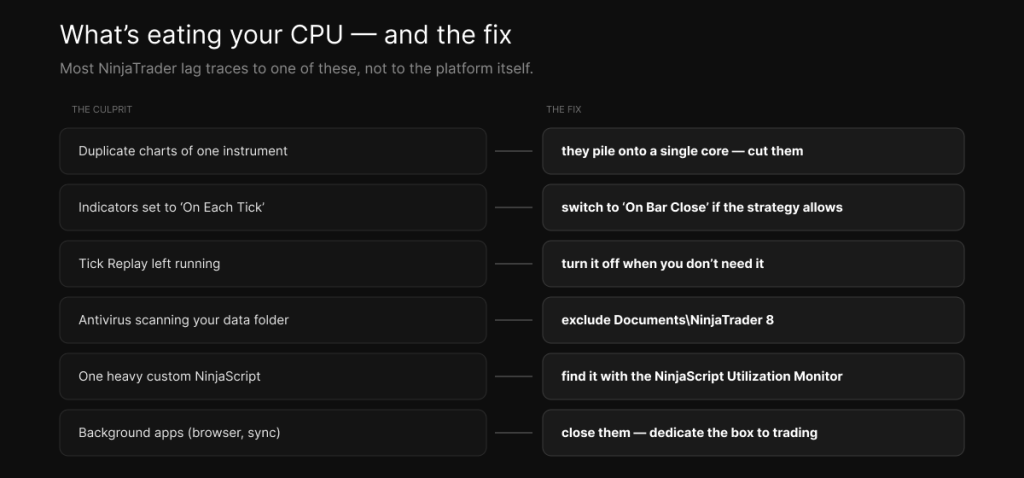
- Background processes that compete for that single core (e.g., Windows updates, antivirus scans, or multiple browser tabs) will directly increase the probability of delayed
OnBarUpdateorOnExecutioncallbacks.
From a trading perspective, single‑core latency is structural risk. Every millisecond of added processing delay can push your entries and exits slightly later in fast‑moving markets, widening your effective slippage.
1.2 What a NinjaTrader VPS Actually Fixes
A properly configured NinjaTrader VPS addresses three hard constraints:
- Uptime and power‑network reliability
- No home‑PC shutdowns, reboots, or sleep‑mode interruptions.
- No local ISP‑outage or router‑reset events dropping your NinjaTrader connection to the broker.
- Latency and jitter to the exchange
- A Chicago‑proximal VPS can achieve 0.5–2 ms one‑way latency to CME instead of the 40–100 ms typical from a home‑internet connection.
- Stable, low‑jitter network paths reduce the variance in time‑to‑fill and lower the probability of being “pushed” off the spread during impact events.
- Resource isolation
- Dedicated CPU cores and RAM prevent your NinjaTrader instance from being starved by Netflix, Windows updates, or other users on the same host.
A generic cloud VPS will undercut these benefits. A futures‑focused VPS (e.g., Chicago‑proximal, Ryzen‑9‑powered, DDR5, NVMe) is designed to minimize both average latency and jitter to the CME. TradoxVPS, for example, offers NinjaTrader‑optimized servers in this exact category, built specifically for futures traders who care about consistent execution.
2. NinjaTrader‑Level Optimizations for a VPS
Even on the best‑sized VPS, NinjaTrader‑side settings directly shape how fast it can process data and execute strategies.
2.1 Use the NinjaTrader Health Report as a baseline
NinjaTrader 8 includes a Health Report that evaluates your environment across four main factors:
- NT8 process uptime (how long it has run since the last restart).
- Database file size.
- Database history age.
- NT8 version (whether you are on the latest build).
Each factor contributes to an overall score (0–100), categorized as:
Running a VPS for multiple days without a restart, carrying a database over 200–500 MB, or accumulating more than 6–12 months of trade history will each lower your score.
Why this matters for a NinjaTrader VPS:
- A bloated, error‑prone database increases the time it takes to load strategies, replay data, and open historical charts, which affects your ability to debug or validate strategies quickly.
- Running an outdated NinjaTrader version means you may be missing latency‑related fixes or performance improvements that are not back‑portable.
Action steps for your NinjaTrader VPS:
- Check the Health Report after each session; if you are in the “Fair” or “Poor” range, schedule a database‑clean and restart cycle.
- Treat the Health Report as a routine maintenance metric, not a one‑time diagnostic.
2.2 Set NinjaTrader Priority to “High”
NinjaTrader 8 can be given a higher priority in Windows’ scheduler so that the OS allocates more CPU time to it relative to background processes.
How to do it on your NinjaTrader VPS:
- Open Task Manager (
Ctrl + Shift + Esc). - Go to the Details tab.
- Right‑click NinjaTrader.exe → Set priority → High.
Execution impact in a VPS:
- When other processes (Windows Defender, background updates, or monitoring tools) compete for CPU, NinjaTrader will be scheduled sooner and more often, reducing the probability of micro‑stalls during bursts of market data.
- This is especially relevant if you run multiple charts or heavy indicators on the same VPS; high priority helps keep the UI thread responsive and strategy callbacks timely.
Caveat:
- Do not set NinjaTrader to Realtime priority unless you fully understand the OS implications; this can destabilize the system and cause other essential services to stall.
2.3 Restart NinjaTrader Daily
NinjaTrader 8 accumulates temporary data, memory caches, and internal state over time. Keeping it open for days without a restart can lead to:
- Gradual slowdowns in chart rendering and strategy responsiveness.
- Increased memory usage and longer garbage‑collection pauses in the .NET runtime.
Why daily restarts help on a NinjaTrader VPS:
- Each restart clears out accumulated caches and transient state, returning the process to a known‑good memory profile.
- Shorter uptime windows reduce the chance that a long‑running instance will hit a latent bug or memory‑leak pattern that only manifests after many hours of operation.
Practical pattern on a NinjaTrader VPS:
- Shut NinjaTrader down at the end of each trading session and restart it before the next one.
- If you run overnight strategies, schedule a maintenance window (e.g., after rollover or during a quiet session) where NinjaTrader is restarted and the database is cleaned.
2.4 Avoid “Auto‑Connect on Startup” for Data Feeds
Auto‑connecting to data feeds on startup may seem convenient, but it can significantly slow down NinjaTrader’s boot time and increase the risk of connection‑related stalls.
What happens when auto‑connect is enabled on a NinjaTrader VPS:
- NinjaTrader tries to establish data connections while it is still loading its UI, charts, and layouts, which can cause timeouts or retries if the broker’s feed is not immediately responsive.
- Connection retries and handshake logic consume CPU and memory at a time when the platform is most fragile, increasing the chance of a failed startup or delayed connection.
Better workflow on a NinjaTrader VPS:
- Disable auto‑connect and start with a blank home workspace.
- Once NinjaTrader is fully loaded and responsive, manually connect to your primary data feed (e.g., your NinjaTrader‑broker data feed first), then your prop‑feed if applicable.
Why this order matters for a NinjaTrader VPS:
- Using a paid NinjaTrader‑broker data feed first (e.g., CME‑bundle) as your primary source stabilizes your connection and reduces reliance on potentially less‑robust prop‑provided feeds.
- Explicitly controlling the connection sequence lets you avoid situations where the platform is stuck waiting for a slow‑reacting prop feed while your primary strategy is already live.
2.5 Use a Blank “Home” Workspace by Default
Starting NinjaTrader with multiple pre‑loaded workspaces and charts can cause a sluggish boot and uneven performance at open.
How to set it up on your NinjaTrader VPS:
- Create a blank workspace with no charts or tools.
- In Options → General, set this blank workspace as the default “Home” workspace.
- After startup, manually load only the workspaces you need for the current session.
Execution benefits on a NinjaTrader VPS:
- Faster startup means you can be ready to trade sooner after any maintenance or restart, reducing the risk of missing the first‑few‑ticks of the session.
- Only loading essential charts and tools keeps memory usage and CPU pressure lower, which tightens tick‑processing latency when the market opens.
2.6 Regularly Repair and Reset the NinjaTrader Database
The NinjaTrader database stores trade history, order logs, and related metadata. Over time, it can accumulate errors, fragmentation, and obsolete entries that degrade performance.
Steps on your NinjaTrader VPS:
- In Tools → Database Management, run Repair DB to fix internal errors and inconsistencies.
- If performance issues persist or you are starting a fresh strategy phase, consider Reset DB, which clears out accumulated data and gives NinjaTrader a clean state.
Real‑trading impact on a NinjaTrader VPS:
- A fragmented or oversized database slows down any operation that touches historical data (e.g., loading charts, replaying sessions, or exporting P&L).
- Periodic resets reduce the chance that a corrupted or bloated database will cause timeouts or crashes during critical moments.
2.7 Minimize Chart and Data Load
Every open chart, every tick‑bar, and every large history buffer consumes CPU, memory, and I/O. NinjaTrader’s documentation and optimization guides emphasize a simple rule: only keep what you need open and in memory.
Concrete optimizations on your NinjaTrader VPS:
- Limit tick and volumetric charts
Tick and tick‑volume charts are extremely resource‑intensive; use them only where necessary and consider switching to time‑based charts (e.g., 1‑minute, 5‑minute) when the analysis need allows. - Reduce the number of open charts
Each chart adds overhead for drawing, updating indicators, and managing scales. If you regularly keep 10+ charts open, consider whether all are required for live execution. - Constrain historical data depth
Only load the number of bars or days of history that you actually use. Preloading multi‑year tick histories may feel “safe,” but it increases memory pressure and startup time.
Effect on a NinjaTrader VPS:
- Lower CPU and memory pressure from charts means NinjaTrader can devote more resources to processing incoming ticks and executing strategy logic, reducing the chance of missed fills or delayed signals.
2.8 Periodically Delete Stored Tick, Minute, and Replay Data
NinjaTrader 8 stores large volumes of tick, minute, and replay data in:
Documents > NinjaTrader8 > db
These folders can grow quickly over multiple sessions and eventually slow down the platform.
Maintenance routine on your NinjaTrader VPS:
- Periodically browse into the
dbfolder and delete the contents of subfolders liketick,minute, andreplay. - Do not delete the folders themselves—only the files inside.
Why this matters for a NinjaTrader VPS:
- Large replay and tick caches increase the time it takes to open and replay historical sessions, which affects your ability to quickly validate or debug strategies.
- Smaller on‑disk footprints also reduce the risk of I/O‑bound stalls during replay or heavy historical analysis.
3. Windows OS and NinjaTrader VPS Tuning
Even with NinjaTrader‑side optimizations, the underlying Windows environment and NinjaTrader VPS configuration can still add latency or jitter.
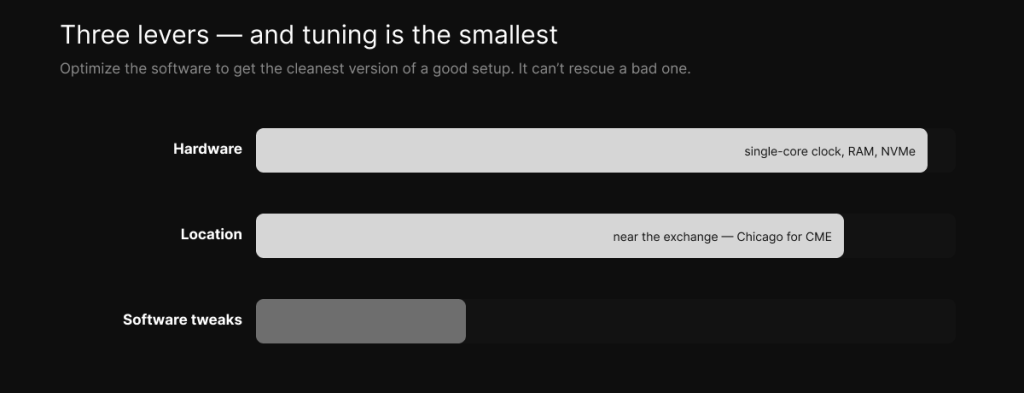
3.1 Use a Futures‑Focused NinjaTrader VPS, Not a Generic Cloud VPS
A generic cloud VPS (e.g., a cheap provider in Frankfurt or Hong Kong) may be adequate for non‑latency‑sensitive tasks, but it will undercut your NinjaTrader edge in futures because:
- Latency to CME can easily exceed 40–100 ms due to multiple hops and consumer‑grade routing.
- Network paths are often shared and subject to congestion, which can cause packet‑loss spikes and jitter during volatile periods.
A futures‑focused NinjaTrader VPS (e.g., Chicago‑proximal, with ≈0.5–2 ms latency to CME and low‑jitter links) eliminates this structural handicap.
What to look for in a NinjaTrader VPS:
- Location: Proximity to CME or your broker’s primary datacenter.
- Network: Dedicated, low‑jitter paths with no bandwidth throttling.
- Hardware: High‑clock single‑core CPUs (e.g., Ryzen 9 with high boost clocks), DDR5, PCIe‑Gen4 NVMe storage.
From a trading perspective, each 10 ms of latency reduction effectively widens your window for working‑order fills and reduces the probability of being “second” in the queue when liquidity is thin.
A NinjaTrader VPS stack like TradoxVPS’ Chicago‑proximal Ryzen‑9 servers is built specifically to minimize both average latency and jitter to the CME, giving futures traders an execution‑focused environment tailored for NinjaTrader 8.
3.2 Optimize Windows Server
Assuming your VPS runs Windows Server 2022 (common in modern low‑latency stacks), there are several OS‑level tweaks that directly affect NinjaTrader’s responsiveness.
3.2.1 Set power plan to “High performance” on your NinjaTrader VPS
In Control Panel → Power Options, set the active plan to High performance.
Why this matters for a NinjaTrader VPS:
- Prevents Windows from dropping CPU clocks during “idle” periods, which keeps NinjaTrader’s tick‑processing path as fast as possible.
- Maintains consistent GPU and NIC performance, which affects chart redraw speed and network‑I/O latency.
3.2.2 Disable screen‑saver and automatic lock on your NinjaTrader VPS
In Settings → Personalization → Screen saver and Accounts → Sign‑in options, ensure:
- No screen‑saver is enabled.
- The PC does not lock automatically after a period of inactivity.
Screen‑saver and lock events can trigger brief GPU and UI‑state changes that add jitter to chart updates and indicator calculations.
3.2.3 Adjust visual effects for performance on your NinjaTrader VPS
In System Properties → Advanced → Performance Settings → Visual Effects, choose “Adjust for best performance” or manually disable:
- Animate controls and elements inside windows
- Fade or slide effects for menus and tooltips
- Desktop composition (transparent glass effects, shadows, etc.)
These effects consume GPU and CPU cycles that are better spent on NinjaTrader’s chart rendering and data processing.
Why this matters for a NinjaTrader VPS:
- During heavy market opens, every CPU tick counts; disabling unnecessary visual effects reduces micro‑delays in chart refresh and indicator updates.
- A leaner UI stack also lowers the probability of brief “stuttering” when multiple charts or heavy indicators are updating simultaneously.
3.2.4 Disable unnecessary scheduled tasks and services on your NinjaTrader VPS
Use services.msc and taskschd.msc to disable non‑critical Windows services (e.g., Windows Update where appropriate, Windows Search, etc.) and background tasks that periodically spike CPU or disk usage.
Common services to review:
- Windows Search (if you don’t need file‑search features).
- Superfetch / SysMain (prefetching rarely used apps).
- Windows Defender real‑time scanning (or at least exclude
NinjaTrader8folders if you keep it on).
Execution impact on a NinjaTrader VPS:
- Background scans and updates can cause brief but impactful stalls in NinjaTrader’s event loop, increasing the chance of missed ticks or delayed strategy events.
- A clean, minimal Windows installation on your VPS reduces noise and makes CPU and I/O behavior more predictable.
3.3 Hardware‑Level Alignment
NinjaTrader 8’s single‑threaded nature means that high single‑core clock speed and low‑latency RAM are more important than raw core count.
For a futures‑focused NinjaTrader VPS, the following hardware‑level choices directly affect execution latency and stability.
3.3.1 CPU: Single‑core performance over core count
NinjaTrader 8 will not fully exploit a 32‑core EPYC for strategy execution, but it will benefit from a Ryzen 9 7950X/9950X with high boost clocks (≈4.5–5.7 GHz).
Why this matters on a NinjaTrader VPS:
- Faster single‑core speeds reduce the time it takes to process tick updates, indicator recalculations, and chart redraws.
- Lower per‑tick latency in the main thread directly tightens your fill‑rate window and reduces the probability of being “late” in fast‑moving markets.
If your VPS provider offers both “high‑core” and “high‑clock” configurations, prioritize higher single‑core clocks for live trading, even if that means fewer cores overall.
3.3.2 RAM: DDR5 and capacity‑to‑workload alignment
DDR5 RAM is materially faster and lower‑latency than DDR4, which is critical when you’re juggling multiple charts, tick data, and large history buffers.
Recommended RAM ranges for a NinjaTrader VPS (single‑account focus):
| NinjaTrader VPS workload (single‑account) | CPU focus (single‑core) | RAM | Storage (NVMe) | Rationale |
|---|---|---|---|---|
| Light (1–2 charts, 1–2 simple strategies) | 4–6 cores, high clock | 16 GB | 250 GB | Enough for light futures day trading, minimal indicators, one broker. |
| Moderate (3–5 charts, several strategies) | 6–8 cores, high clock | 32 GB | 300 GB | Handles multi‑instrument, complex indicators, and light backtesting. |
| Heavy (5–7+ charts, heavy indicators) | 8–12 cores, high clock | 48 GB | 500 GB | Suitable for multi‑timeframe analysis, dense layouts, and replay‑heavy workflows. |
| Pro (multi‑account, copiers, WFA) | 12–16+ cores, high clock | 64 GB | 1 TB | Designed for multi‑broker, multi‑account, and continuous WFA/backtesting. |
Key rule for a NinjaTrader VPS:
If your RAM usage consistently exceeds 70–80% of the VPS capacity, you’re risking increased latency from memory pressure and garbage‑collection stalls.
3.3.3 Storage: NVMe vs SATA for a NinjaTrader VPS
NinjaTrader 8’s database, tick/minute/replay data, and logs can grow quickly over time. Using PCIe‑Gen4 NVMe storage instead of SATA SSDs reduces I/O latency and improves read‑write speeds.
Impact on a NinjaTrader VPS:
- Faster database loads and writes during startup, backtesting, and replay.
- Lower probability of I/O‑bound stalls when the market opens or when you’re loading large historical datasets.
For futures‑focused VPS stacks, NVMe storage is not a luxury—it is a core enabler for quick, reliable data access.
Many futures‑focused VPS providers (including TradoxVPS) now ship Ryzen‑9‑based servers with DDR5 and NVMe as standard, precisely because futures traders need low‑latency, high‑bandwidth access to their data and strategies.
4. Strategy and Code‑Level Optimizations on a NinjaTrader VPS
Hardware and OS tuning are necessary, but they are not sufficient. Strategy‑ and indicator‑level inefficiencies can still choke CPU and memory on even the best‑sized NinjaTrader VPS.
4.1 Avoid unnecessary computations in NinjaTrader indicators
Common performance‑killing patterns in NinjaTrader user scripts:
- Calculating memory‑intensive indicators (e.g., nested moving averages, complex volatility measures) on every tick without pre‑calculation.
- Rebuilding large arrays or data structures on every update.
- Using cross‑timeframe referencing in a way that forces NinjaTrader to recalculate entire histories every tick.
Concrete optimizations for a NinjaTrader VPS:
- Pre‑compute static or slowly‑changing data
Examples: session boundaries, reference levels, or fixed‑length rolling windows can be calculated once per session or at key intervals instead of on every tick. - Use efficient data structures
Prefer native arrays orList<T>with pre‑allocated capacity over repeatedly resizing or copying large collections. - Limit cross‑timeframe calls
If you must reference higher‑timeframes, consider downsampling or caching derived series instead of recalculating them on every tick.
Why this matters on a NinjaTrader VPS:
- Reducing per‑tick CPU load keeps the main thread available for faster tick processing and strategy execution.
- Fewer allocations and recalculations reduce the probability of micro‑pauses that can cause your strategy to miss optimal fills or execute slightly later than intended.
4.2 Memory pressure and GC‑related pauses on a VPS
NinjaTrader runs on the .NET framework, so it is subject to garbage‑collection pauses. If your code allocates large temporary objects frequently, you risk:
- Short, unpredictable GC stalls.
- Delayed strategy callbacks (
OnBarUpdate,OnExecution, etc.).
Best practices on a NinjaTrader VPS:
- Reuse objects where possible
Pre‑allocated arrays, buffers, and object pools help avoid repeatednewallocations. - Avoid creating short‑lived large objects in the inner loop
Move large intermediate computations to non‑tick‑sensitive areas when possible. - Prefer stack‑allocated value types or cached arrays
This reduces heap pressure and the frequency of GC events.
These changes directly reduce the probability of micro‑pauses that can cause your strategy to miss optimal fills or execute later than intended.
5. Multi‑Account, Multi‑Instance, and Copier‑Heavy NinjaTrader VPS Setups
Many futures traders run:
- Multiple NinjaTrader instances (different brokers, accounts, or strategies).
- Trade copiers distributing signals across multiple prop‑firm accounts.
Each additional instance multiplies CPU, RAM, and network load on your VPS.
Typical resource‑scaling guidance for a NinjaTrader VPS
A rough mapping for multi‑account and copier‑heavy NinjaTrader VPS workloads:
| Number of active NinjaTrader accounts on VPS | CPU cores (high‑clock) | RAM | Storage (NVMe) | Use case |
|---|---|---|---|---|
| 1–3 accounts (single instance) | 4–6 cores | 16 GB | 250–300 GB | Solo futures trading, basic copiers. |
| 4–8 accounts (multi‑instance/copiers) | 8–12 cores | 32 GB | 300–500 GB | Multi‑broker, multi‑account strategies, light WFA. |
| 8–16+ accounts (heavy copiers, WFA) | 12–16+ cores | 48–64 GB | 500–1000 GB | Heavy algorithmic suit, multi‑broker, multi‑prop‑firm, continuous WFA. |
Key rule for multi‑account NinjaTrader VPS setups:
If you’re running 5+ NinjaTrader instances on the same VPS, ensure that CPU and RAM are at least one tier above your single‑instance recommendation.
6. NinjaTrader VPS Optimization Checklist
For reference, here’s a practical VPS optimization checklist you can follow every few weeks:
NinjaTrader‑Level
- ✅ Run the Health Report and keep score in the “Good” range or higher.
- ✅ Set NinjaTrader priority to High in Task Manager.
- ✅ Restart NinjaTrader daily or after heavy sessions.
- ✅ Disable auto‑connect on startup and connect feeds manually.
- ✅ Use a blank “Home” workspace by default.
- ✅ Repair (and occasionally reset) the NinjaTrader database.
- ✅ Minimize open charts, tick‑bar data, and history depth.
- ✅ Periodically delete stored tick, minute, and replay data in
Documents > NinjaTrader8 > db.
Windows‑Level (on the VPS)
- ✅ Set Power Plan → High performance.
- ✅ Disable screen‑saver and automatic lock.
- ✅ Set Visual Effects → Adjust for best performance.
- ✅ Disable unnecessary Windows services and scheduled tasks.
Hardware‑Level (VPS choice)
- ✅ Prefer Chicago‑proximal, low‑latency paths to CME.
- ✅ Choose high single‑core clock (e.g., Ryzen 9 7950X/9950X).
- ✅ Use DDR5 RAM and NVMe storage.
- ✅ Match CPU/RAM/storage to your multi‑account/copy‑workflow as per the table above.
7. Positioning Your NinjaTrader VPS (and TradoxVPS)
For futures traders, the NinjaTrader VPS is not a “nice‑to‑have” convenience; it is a core execution layer that determines slippage, fill‑rate consistency, and 24/7 reliability.
When you evaluate your VPS stack, you should be asking:
- Is my VPS close to CME with a stable, low‑jitter path?
- Is the CPU tuned for single‑core performance, not just core count?
- Is the OS configured to minimize noise (no background scans, no visual fluff)?
- Are strategy and code‑level optimizations in place to avoid unnecessary CPU and memory pressure?
A futures‑focused VPS like TradoxVPS is built explicitly for this use case: Chicago‑proximal Ryzen‑9 servers, DDR5, NVMe, and a clean, minimal Windows Server environment tailored for low‑latency futures trading.
If you run NinjaTrader 8 with futures strategies and care about execution quality, your VPS should be treated as part of your edge—not as a generic hosting box.
Explore TradoxVPS at https://tradoxvps.com to build a NinjaTrader VPS that’s tuned for futures trading, low latency, and 24/7 reliability.
Frequently Asked Questions
What is a NinjaTrader VPS and why do futures traders need one?
A NinjaTrader VPS is a dedicated Windows server that runs NinjaTrader 8 in a low‑latency, 24/7 environment. Futures traders need it to reduce latency to exchanges like CME, eliminate local PC or internet failures, and ensure consistent execution for automated strategies.
Which location is best for a NinjaTrader VPS trading CME futures?
For CME futures like ES, NQ, and MES, Chicago‑proximal datacenters are best. A NinjaTrader VPS located in or near Chicago can achieve 0.5–2 ms latency to CME, versus 40–100+ ms from generic cloud regions.
How much RAM and CPU does a NinjaTrader VPS need for futures trading?
For light futures trading with 1–2 simple strategies, a NinjaTrader VPS with 4–6 high‑clock CPU cores and 16 GB RAM is usually enough. For multi‑account, heavy indicators, or copiers, 8–12 cores and 32–64 GB RAM is recommended to avoid CPU stalls and memory pressure.
What Windows settings should I change on a NinjaTrader VPS for low latency?
On a NinjaTrader VPS, set the power plan to High Performance, disable screen saver and auto‑lock, disable unnecessary Windows services and scheduled tasks, and reduce visual effects. This keeps CPU clocks high and reduces background noise that can cause micro‑stalls in NinjaTrader.
How does NinjaTrader 8 performance depend on single‑core CPU speed?
NinjaTrader 8 is largely single‑threaded in its main loop, so high single‑core clock speed matters more than raw core count. A NinjaTrader VPS with a high‑clock Ryzen 9 or similar CPU will process ticks, charts, and strategies faster than one with many slower cores, which directly reduces latency and jitter.
Should I run NinjaTrader on a generic cloud VPS or a futures‑focused NinjaTrader VPS?
Generic cloud VPS instances often have higher latency, shared noisy hardware, and consumer‑grade routing, which harms futures execution. A futures‑focused VPS in Chicago with low‑jitter links and dedicated resources is designed specifically for low‑latency NinjaTrader 8 trading.
How often should I restart NinjaTrader on my NinjaTrader VPS?
It’s best to restart NinjaTrader daily or at least after heavy sessions. Restarting clears accumulated memory caches and internal state, reducing the chance of slowdowns and long garbage‑collection pauses that can delay strategy events on a VPS.
How do I reduce latency between NinjaTrader and the exchange on a VPS?
To reduce latency, run NinjaTrader on a VPS located near CME (e.g., Chicago), use a futures‑focused VPS with low‑jitter network paths, ensure high single‑core CPU speed, and minimize background processes and poorly optimized indicators that add CPU load.
Can TradoxVPS be used as a NinjaTrader VPS for futures trading?
Yes. TradoxVPS offers futures‑focused trading VPS plans with Chicago‑proximal Ryzen‑9 servers, DDR5 RAM, NVMe storage, and low‑latency, 24/7‑reliable networking. This makes it well‑suited for NinjaTrader 8 users who trade futures and care about execution quality. Visit https://tradoxvps.com to see NinjaTrader‑optimized plans.