
You build a strategy, the backtest looks right, and you enable it on a live or simulation account. Then nothing happens. Or it trades for a week and switches itself off. Or it closes positions without a signal.
Many of these cases are not bugs. They come from settings and rules that NinjaTrader documents, and the Log tab in the Control Center often records which one applied. This guide works through each cause in the order you are likely to meet it:
- a strategy that will not start trading
- entries that are ignored
- a strategy that disables itself
- live results that differ from the backtest
- positions that close on their own
- strategies left behind after a contract rollover or a restart
Every setting and default below comes from the NinjaTrader 8 help guide. The exact log messages are quoted so you can match them against what you see.
Disclosure: TradoxVPS has no affiliate relationship with NinjaTrader.
The short answer
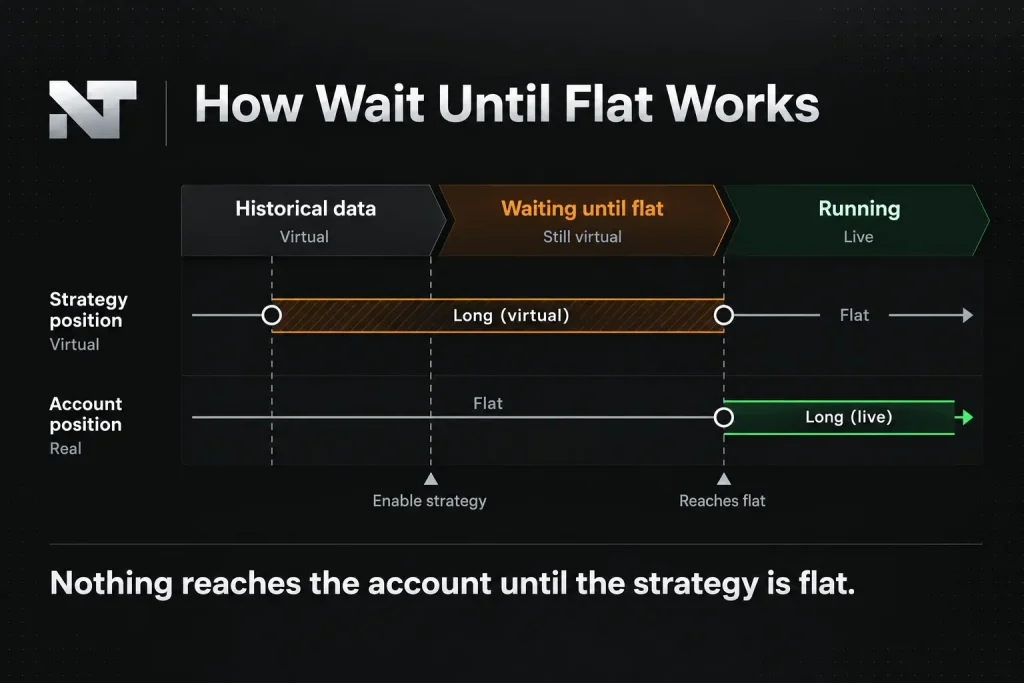
- The strategy is orange (many traders call it yellow): it is waiting until flat. By default, a strategy whose historical, virtual position is not flat keeps trading virtually until that position closes. Only then does it send live orders.
- No order appears when the signal fires: the entry was ignored, or never allowed. Common reasons are Entries per direction (one by default), NinjaTrader’s Internal Order Handling Rules, Bars required to trade (20 by default) or a second data series outside its session.
- The strategy switched itself off: check for a rejected order, which stops the strategy by default. Other causes are the historical-to-live order error, a run-time error in the code, a manual Close, or repeated disconnects.
- Live trades differ from the backtest: by default, a backtest only knows each bar’s open, high, low and close, and runs its logic once per bar.
- Positions close without a signal: Exit on close is on by default and, in real time, flattens the strategy 30 seconds before the session ends.
- The strategy is still on the old contract after a roll, or off after a restart: NinjaTrader does not roll strategies to the next contract, and does not re-enable them when the platform starts.
First check: the strategy’s colour, position and log
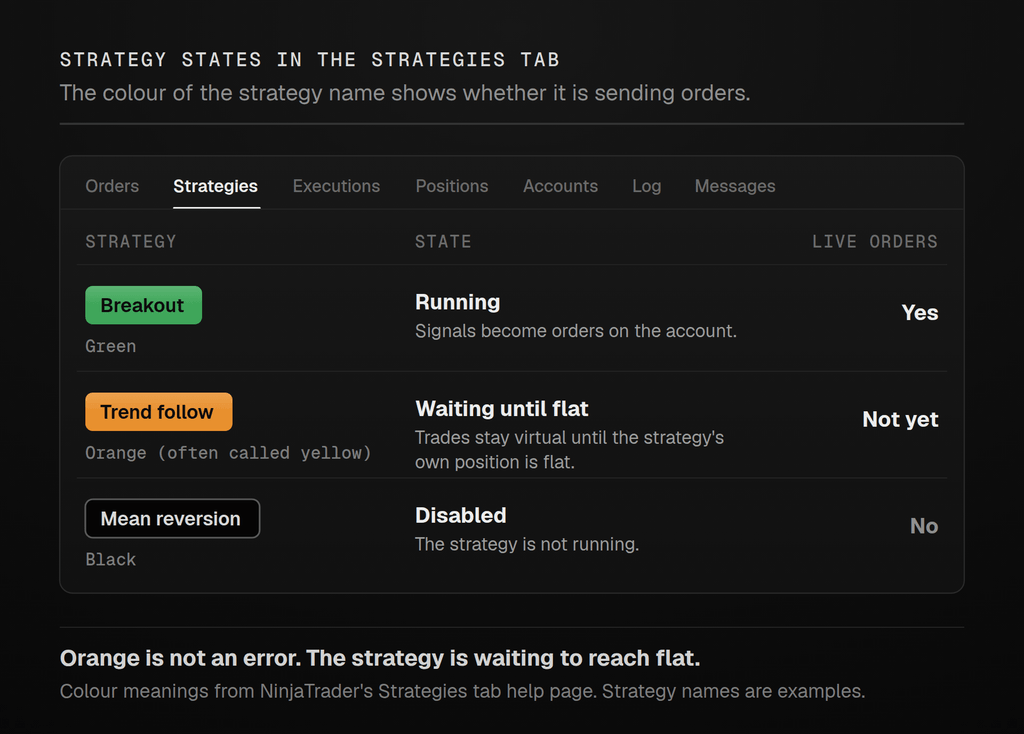
The Strategies tab in the Control Center lists every running or disabled strategy, whether you started it from a chart or from the tab itself. NinjaTrader’s Strategies tab page gives the strategy name one of three colours:
- Green: the strategy is running.
- Orange: the strategy is waiting to reach a flat position before it fully starts, so that it is in sync with the account position.
- Black: the strategy is disabled.
Three columns on the same tab tell you more:
- Strategy Position: the position the strategy believes it holds.
- Account Position: the real position on the account, including trades the strategy did not place.
- Sync: shows true when the two match.
Then open the Log tab. Order rejections, run-time errors and many ignored orders are recorded there with a timestamp, although some ignored entries only show up in the NinjaScript Output window once TraceOrders is turned on (see below). Copy the exact wording of any message before you restart anything, because the sections below are organised around those messages.
Why a NinjaTrader strategy shows orange: waiting until flat
If a strategy shows trades on the chart but sends no live orders, check its start behaviour first.
The virtual position
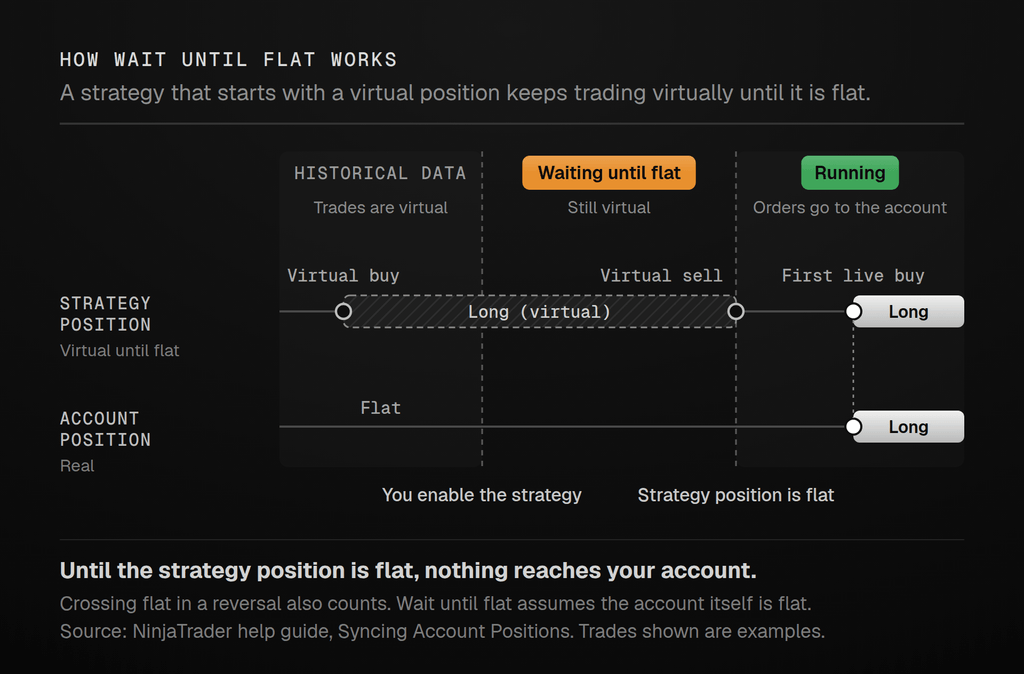
When you enable a strategy, NinjaTrader first runs it over the historical data loaded for it. The trades it takes there are virtual, but they leave the strategy holding a position. If the last historical signal was a buy that has not been exited yet, the strategy starts out long, even though your account holds nothing.
The Start behavior setting decides what happens next, and its default is Wait until flat (StartBehavior). Under that setting, a strategy whose position is not flat keeps trading “in a virtual sense” until its position reaches or crosses flat, according to NinjaTrader’s Syncing Account Positions page. Its orders become live only after that. Until then the name stays orange, and any trades it takes in the meantime stay virtual, so none of them reach your account.
How long that takes depends entirely on the strategy. A slow trend-following strategy that is virtually long may wait days for its exit signal.
Wait until flat also assumes that your account is flat. If the account holds a position when the strategy reaches flat, the two will not be in sync.
The five start behaviours
| Start behavior | What it does when you enable the strategy | When it fits |
|---|---|---|
| Wait until flat | Trades virtually until the strategy position is flat, then trades live. Assumes the account is flat. | The default, which NinjaTrader calls the least disruptive. Fits an account that holds no position. |
| Wait until flat, synchronize account | If the account is not flat, sends market orders to flatten it. Then waits for the strategy position to reach flat before trading live. | You want a clean start and accept that an existing account position will be closed. |
| Immediately submit | Matches orders the strategy left on the account from an earlier run to its active orders, cancels the left-over orders that do not match, and submits any unmatched strategy orders live straight away. Assumes the account already matches the strategy. | Restarting a strategy when you know the account holds exactly what the strategy expects. |
| Immediately submit, synchronize account | As above, then compares the account position with the strategy position and sends market orders to make them match. | You want the strategy live at once and accept market orders at start-up. |
| Adopt account position | Ignores the historical virtual position and starts from the account’s real position. | Only for strategies written for it. The code must set IsAdoptAccountPositionAware to true. Only one such strategy can run per account and instrument, and the account must have no working orders placed outside the strategy. |
NinjaTrader attaches two warnings to these options:
- The synchronize options “can close or place live trades” on your account.
- All of them line the account and the strategy up once, at start-up. They do not keep the two in sync afterwards.
Which start behaviour to use
- For a fresh start on a flat account, the default is fine. Expect the strategy to stay orange until its virtual position closes.
- If the account already holds a position, flatten it yourself first, or use Wait until flat, synchronize account and accept the market orders it may send. Either way, the strategy still waits for its own virtual position to reach flat before it trades live.
- If you cannot wait for that, use Immediately submit, synchronize account. It starts the strategy live at once and sends market orders to bring the account in line with the strategy position.
- For a restart with a position the strategy itself opened, Immediately submit lets it carry on, as long as the account really matches what the strategy calculates. Check its stop and target orders afterwards. Orders the strategy left on the account that do not match its recalculated orders are cancelled, and any strategy orders left unmatched are submitted fresh.
Why a NinjaTrader strategy is not taking trades
If the strategy is green but no order appears when you can see the signal on the chart, work through these causes.
Not enough bars yet
A strategy does not process its order methods until it has seen a minimum number of bars. The default Bars required to trade is 20. In a strategy with more than one data series, the limit on order methods applies only to the primary series, but each added series only receives real-time bar updates once it has met the requirement too (BarsRequiredToTrade).
If you have raised that number, or the strategy runs on a slow chart with only a few days loaded, it can take a long time to reach the minimum. Check that Days to load provides more bars than the strategy needs.
Entries per direction
By default a strategy allows one entry per direction while a position is open (EntriesPerDirection). With the default Entry handling of AllEntries, further entries in the same direction are ignored once that limit is reached. With UniqueEntries, the limit applies to each uniquely named entry instead (EntryHandling).
A strategy designed to add to a winning position therefore needs a higher Entries per direction, or uniquely named entries with UniqueEntries. TraceOrders, covered below, shows when an entry was ignored for this reason.
Ignored entries: the Internal Order Handling Rules
The Log may show this message, quoted here from a report on NinjaTrader’s community forum:
An Enter() method to submit an entry order has been ignored. Please search on the term 'Internal Order Handling Rules that Reduce Unwanted Positions' in the Help Guide for detailed explanation.
If so, the strategy broke one of the rules in NinjaTrader’s managed approach. An entry method is ignored when:
- a position is open, a non-market exit order (from ExitLongLimit(), for example) is working, and the entry would open a position in the opposite direction
- a position is open, an order from a Set method (SetStopLoss(), for example) is working, and the entry would reverse the position
- a position is open and two or more entry methods to reverse it are called together, in which case the second entry is ignored
- the strategy is flat, an entry order is working, and a new entry would open a position in the opposite direction
- the entry signal name is not unique
These rules exist to stop a strategy building positions it did not intend. To see every ignored order and the reason for it, set TraceOrders to true in the strategy’s code. The explanations then appear in the NinjaScript Output window (TraceOrders).
Calculate on bar close
Calculate sets how often the strategy’s logic runs (Calculate). There are three options:
- On bar close: once, when each bar closes. This is the default.
- On each tick: on every incoming tick.
- On price change: each time the price changes.
On the default setting, a signal that appears halfway through a bar is not acted on until that bar closes. The order therefore goes in at the bar’s close, not at the moment the chart first showed the signal.
A second data series outside its trading hours
Strategies that add a second data series of the same instrument, with a different trading hours template, hit a limit that NinjaTrader warns about on its AddDataSeries page. In real time, the strategy only processes bar updates when a tick arrives inside the session of every added series.
A strategy built on round-the-clock data with an added regular-hours series therefore stays quiet outside regular hours. NinjaTrader staff recommend using one trading hours template and filtering by time in code instead.
If the strategy filters by clock time, check the platform’s time zone too. Our guide to daylight saving time and trading hours explains why those times shift twice a year.
The wrong account, or no connection
The Account property sets the account the strategy sends its orders to. It is easy to leave a strategy on a simulation account such as Sim101 and wonder why the live account is idle.
NinjaTrader must also be connected to a live brokerage or market data connection for a strategy to run at all, or, for testing, to the Playback or Simulated Data Feed connection (Running a NinjaScript Strategy from a Chart).
Why a NinjaTrader strategy disables itself
A strategy that was green and is now black stopped for a reason, and the Log tab usually records it. These are the documented causes.
A rejected order
By default, when the broker returns one of the strategy’s orders in a Rejected state, the strategy stops. It also cancels its working orders and closes its open positions (RealtimeErrorHandling). In the log this appears as a line such as Strategy has sent cancel requests, attempted to close the position and terminated itself., as in this forum report. The reason for the rejection does not matter. A margin shortfall, an invalid price or a prop firm’s risk limit all have the same effect.
The strategy’s code can choose one of two other behaviours:
- StopCancelCloseIgnoreRejects keeps the default response to other errors, but lets the strategy keep running after a rejection.
- IgnoreAllErrors ignores every order error. NinjaTrader warns that it can seriously harm a running strategy unless you have written your own rejection handling in OnOrderUpdate().
A strategy that keeps running after a rejection has to deal with the rejected order itself, for example by sending a market exit in place of a rejected stop. NinjaTrader staff recommend trapping the rejection in OnOrderUpdate() and handling it there, and calling CloseStrategy() for any other order errors that the code does not specifically handle.
Stop orders on the wrong side of the market
Buy stop orders must be placed above the current ask price, and sell stop orders below the current bid price, as NinjaTrader staff explain. In a fast market, the price can pass your stop level before the order reaches the broker. A stop order on the wrong side of the market is handled differently on historical data and in real time, according to NinjaTrader staff:
- Ignored on historical data, including backtests, with a message such as
An order has been ignored since the stop price ... is invalid based on the price range of the bar. - Rejected in real time, with a message such as
Buy stop or buy stop limit orders can't be placed below the market.NinjaTrader staff describe it as appearing when “the stop price is ahead of the market”.
Only the rejection stops the strategy under default error handling. A stop that a backtest merely ignored can therefore switch the strategy off live.
Backtests make this easy to miss for a second reason. On historical data, NinjaTrader substitutes the bar’s close for the current bid (GetCurrentBid()), so a backtest does not model the spread your stop has to clear.
NinjaTrader staff suggest printing the order price next to GetCurrentBid() and GetCurrentAsk(), and checking that a stop price is on the correct side of the market before submitting it. If the market has already passed your stop level, you can send a market order instead.
“Attempted to modify a historical order that has transitioned to a live order”
The full message is:
Strategy has been disabled because it attempted to modify a historical order that has transitioned to a live order.
It comes from strategies that keep references to their own orders in code. When a strategy goes live, NinjaTrader resubmits its active historical orders to the account, and the historical order IDs are replaced by account-generated ones (Advanced Order Handling). Code that then tries to modify the old historical reference triggers the error.
The fix belongs in the code. Update the reference with GetRealtimeOrder() once the strategy reaches real time; NinjaTrader recommends doing this in OnOrderUpdate(). If you bought the strategy, send the message to its developer.
A run-time error in the code
This message means the code itself crashed:
Error on calling 'OnBarUpdate' method on bar 634: You are accessing an index with a value that is invalid since it is out-of-range.
This cause needs the fastest response. NinjaTrader staff explain that a run-time logic error is not an order error, so the strategy cannot exit its position or cancel its orders gracefully. “The strategy will come to an immediate halt.” Any open position and working orders stay where they are, so check the account straight away.
The index error means the code asked for a bar that does not exist yet, for example the close five bars ago when only four bars are loaded. Bars required to trade does not prevent it, because that setting holds back order methods, not the rest of the code. NinjaTrader staff recommend an explicit check at the top of OnBarUpdate(), such as if (CurrentBar < 10) return;.
Closing positions or cancelling orders by hand
Clicking Close on a position for an account and instrument that a strategy is trading disables the strategy. Cancelling the strategy’s orders by hand can also stop it from working as designed (Running a NinjaScript Strategy from a Chart).
If you need to step in, disable the strategy first. What happens to its working orders then depends on two settings under Tools > Settings > Strategies (Tools > Options in older versions): Cancel entry orders when a strategy is disabled and Cancel exit orders when a strategy is disabled (Settings: Strategies).
Repeated disconnects
The default connection loss handling is Recalculate. Under it, a strategy is stopped in three cases, and NinjaTrader then attempts to recalculate its position once the connection is re-established (ConnectionLossHandling):
- the data feed stays down longer than the disconnect delay, which is 10 seconds by default (DisconnectDelaySeconds)
- the order feed drops and the strategy tries to place an order while it is down
- both feeds stay down longer than the delay
A strategy that keeps reconnecting is also capped. If its restart attempts exceed four within five minutes, it stops and makes no further attempts (NumberRestartAttempts, RestartsWithinMinutes). NinjaTrader describes this as protection for connections that cannot stay up.
You can change these defaults under Tools > Settings > Strategies. Our NinjaTrader connection problems guide covers fixing the connection itself.
Why NinjaTrader backtest results differ from live trading
A backtest is a simulation that works with less information than real time. NinjaTrader lists the reasons on its Discrepancies: Real-Time vs Backtest page, and several settings widen or narrow the gap:
| Backtest | Live | |
|---|---|---|
| Price information | Only the open, high, low and close of each bar | Every tick, in order |
| When the logic runs | Once per bar, at the close, whatever Calculate says, unless you add Tick Replay or a finer data series | As often as Calculate says |
| Fill prices | Assumed from the bar’s open, high, low and close | Set by real orders, prices and volume |
| Limit orders | The price must trade through the limit, unless Fill limit orders on touch is on (a backtest-only setting, off by default) | A touch of your price does not guarantee a fill |
| Bid and ask | Replaced by the bar’s close price | Real quotes, which can move past a stop price before the order arrives |
| Slippage | None unless you add it, and then only on market, stop-market and market-if-touched orders | Real |
| Exit on close | At the close of the session’s last bar | 30 seconds before the session ends, by default |
Sources: NinjaTrader help guide pages for Calculate, historical fill processing, IsFillLimitOnTouch, ExitOnSessionCloseSeconds and GetCurrentBid().
Two more reasons on NinjaTrader’s list matter if they apply to you:
- The data itself can differ. A strategy that ran live yesterday is backtested today on historical data, which may not match the ticks it saw in real time. On tick-based charts, a single tick of difference can produce completely different bars, and different trades.
- Some bar types cannot be simulated faithfully. Standard Renko bars are hard to backtest because of the way they reverse. Heiken Ashi bars replace the real open, high, low and close with averaged values, so backtest fills on them can use prices that never traded.
To narrow the gap:
- Set Order fill resolution to High, which fills orders on a secondary, more granular series, such as one-tick data (Understanding Historical Fill Processing). It cannot be used in multi-series strategies or together with Tick Replay. In those cases, NinjaTrader suggests writing the strategy to submit orders to a single-tick data series instead.
- Do not count on Tick Replay to fix backtests. It loads the bid, ask and last data that built each bar in the original sequence, which helps indicators that depend on that detail, at a cost in computer resources. NinjaTrader notes that it is not intended for strategy backtests and will not give the same results as running a strategy live.
- Add realistic slippage to market and stop orders.
- Test in real-time conditions without risk. The Playback connection runs orders, indicators and strategies “just as they were running in real-time” on recorded data. NinjaTrader describes its Market Replay data as the most accurate kind for this.
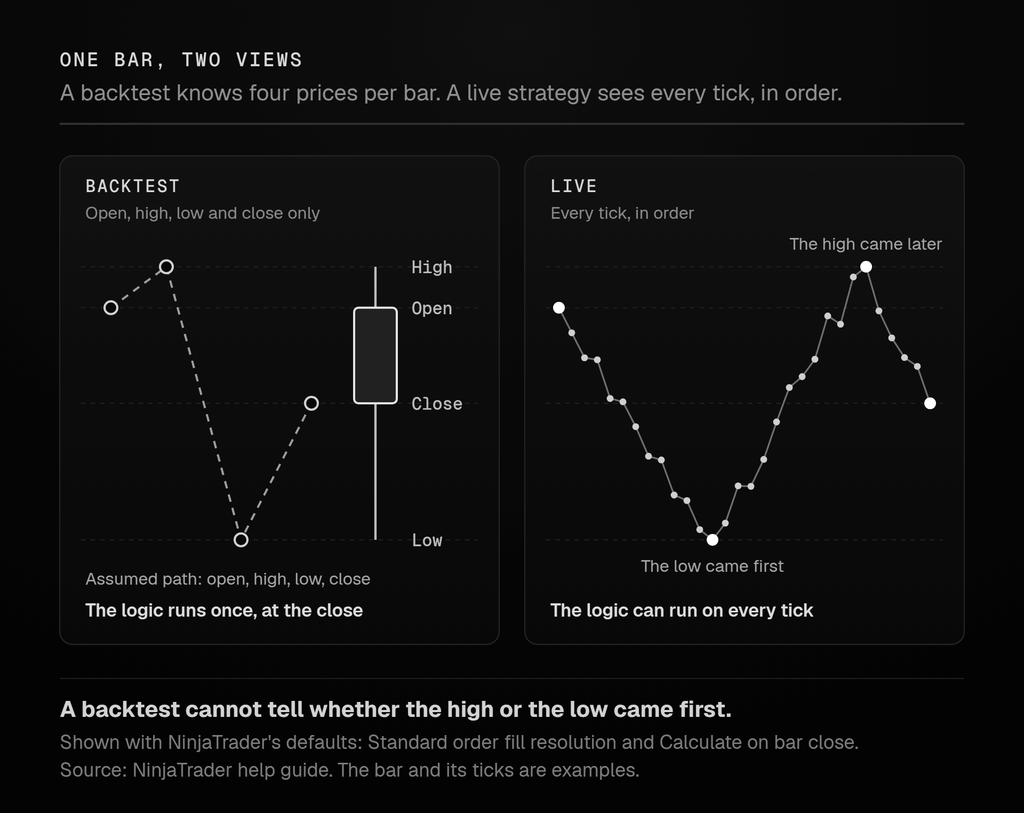
[IMAGE 3, place here] What a backtest knows about a bar, compared with what a live strategy sees.
Alt text: A backtest bar where only the open, high, low and close are known, beside the same bar in real time where each tick arrives in order.
Why positions close at the end of the session
If positions close shortly before the session ends without a signal, check Exit on close (IsExitOnSessionCloseStrategy). It is on by default. When it is on, the strategy cancels all of its orders and closes all of its positions at the close of any session. In a strategy that trades several instruments, the close of any one of their sessions is enough.
In real time it fires 30 seconds before the session ends, by default, using the end of day in the data series’ trading hours template (ExitOnSessionCloseSeconds). On historical data it exits at the close of the session’s last bar instead, so backtest and live exit prices can differ.
NinjaTrader describes the setting as designed for intraday strategies. Turn it off for a swing strategy that holds positions overnight. On bar types that are not based on time, such as Renko, the exit can trigger after the session has closed.
After a contract rollover
NinjaTrader’s rollover updates the contract month in instrument lists and open windows. Its help guide is explicit, though, that “NinjaScript strategies are not rolled forward and must be manually rolled over” (Rolling Over Futures Contracts). A strategy left on the expiring contract keeps trading it as activity moves to the next month, and any position it holds stays on that contract.
When the roll date arrives:
- Disable the strategy on the expiring contract, and check that it is flat or close its position deliberately.
- Add the strategy again on the new contract month.
- Choose its start behaviour knowing that the new contract’s history will give it a fresh virtual position.
After a restart or disconnect
NinjaTrader does not re-enable strategies when the platform starts. NinjaTrader support has confirmed that there is no setting for it, and that strategies have to be re-enabled by hand after each start-up. Traders were still asking for an automatic option on NinjaTrader’s community forum in 2026. Any restart of the platform or the computer, planned or not, leaves the strategy off until someone enables it again.
When you re-enable:
- Expect orange. Under the default Wait until flat, the strategy goes back to waiting if its recalculated position is not flat.
- Check the stops after Immediately submit. If the strategy held a position before the restart, Immediately submit can resume it, but orders it left on the account that do not match its recalculated orders are cancelled, and its unmatched orders are submitted fresh.
- Compare the columns. Check Strategy Position, Account Position and Sync before you walk away.
A short disconnect is handled differently. Connection loss handling decides whether the strategy carries on, recalculates or stops, as described in the section on repeated disconnects above.
How to find the cause, step by step
- Read the colour. Green means running, orange means waiting until flat, and black means disabled.
- Read the Log tab. Find the strategy’s entries and copy the exact message.
- Compare the positions. If Sync is false, the strategy and the account disagree. Decide which one is right before you do anything else.
- Turn on TraceOrders. Ignored orders, and the reason for each, appear in the NinjaScript Output window.
- Print the values your conditions use. Print the bar number, the indicator values and, for stop orders, the order price beside GetCurrentBid() and GetCurrentAsk().
- Replay the day it failed. Run the strategy on the Playback connection with Market Replay data for that session.
- Compare settings. Make sure Calculate, the trading hours template, the data series, Order fill resolution and Exit on close are the same in the backtest and the live strategy.
A checklist before leaving a strategy running unattended
- The strategy is green, on the right account and on the right contract month.
- Strategy Position, Account Position and Sync agree.
- The start behaviour suits the way you will restart the strategy.
- Exit on close is on for an intraday strategy and off for one that holds overnight.
- Entries per direction and Entry handling allow every entry the strategy is meant to make.
- The code checks the bar count before it looks back, and handles rejected orders if you changed the default error handling.
- The connection loss settings, the disconnect delay and the restart limits are values you chose deliberately.
- You know the next roll date for the contract.
- Someone will notice if the platform or the computer restarts, because the strategy will not re-enable itself.
Where hosting fits
None of the causes above is about hardware. A strategy that is waiting until flat, ignoring entries or reacting to a rejection behaves the same way on any computer.
What a machine that stays on changes is how often the platform restarts or loses its connection. NinjaTrader does not re-enable strategies after a restart, so a power cut or an automatic update that restarts a home PC leaves the strategy off until you notice. A laptop that goes to sleep drops the connection, which hands the strategy over to connection loss handling.
A hosted machine takes the home-specific interruptions out of the picture: household power cuts, sleep settings and the home internet connection. Its own updates and restarts still need planning, and the settings in this guide still decide what the strategy does. If you run NinjaTrader that way, our NinjaTrader VPS page explains the setup.
How this guide was checked
Every setting and default value here was checked against the NinjaTrader 8 help guide in October 2026. Where the help guide is silent, including most of the log messages, the text relies on NinjaTrader’s own forums, mainly answers from NinjaTrader support staff, and links to the threads it used. For building and testing strategies in more depth, see our guide to NinjaTrader strategies.
Frequently asked questions
It is waiting until flat. With the default Start behavior, a strategy whose historical, virtual position is not flat keeps trading virtually until that position closes, and only then sends live orders. NinjaTrader’s help guide calls the colour orange; many traders call it yellow. Green means running and black means disabled.
The strategy’s code kept a reference to an order created during historical processing. When the strategy went live, NinjaTrader resubmitted that order with a new account-generated ID. The code then tried to change the old reference, so NinjaTrader disabled the strategy. The fix is to update the reference with GetRealtimeOrder() in OnOrderUpdate().
The entry broke one of NinjaTrader’s Internal Order Handling Rules for managed strategies. For example, it tried to reverse a position while an exit or stop order was working, or it reused a signal name. Set TraceOrders to true to see exactly which rule applied in the NinjaScript Output window.
Exit on close is on by default. In real time it cancels the strategy’s orders and closes its positions 30 seconds before the end of the session, as defined by the data series’ trading hours template. NinjaTrader designed it for intraday strategies, so turn it off for a strategy that holds positions overnight.
No. NinjaTrader’s help guide states that NinjaScript strategies are not rolled forward and must be rolled over manually. Disable the strategy on the expiring contract, deal with any open position, and add it again on the new contract month.
No. NinjaTrader support has confirmed that strategies must be re-enabled by hand each time the platform starts. After re-enabling, check the start behaviour and compare the Strategy Position, Account Position and Sync columns.
Only if the strategy’s code handles rejected orders itself in OnOrderUpdate(). NinjaTrader warns that IgnoreAllErrors can seriously harm a running strategy otherwise. StopCancelCloseIgnoreRejects is the narrower option: it keeps the default response to other errors but lets the strategy keep running after a rejection.
Use NinjaTrader’s Playback connection with Market Replay data. NinjaTrader says orders, indicators and strategies calculate there just as they would in real time, on recorded market data. That makes it a closer test than a backtest of how the strategy will behave live.