
A NinjaTrader connection problem becomes easier to solve once you identify the part that failed. The platform can lose its price feed, its order connection, or both. It can also stay connected while one chart freezes or one account rejects orders. These symptoms look similar, but they need different checks and fixes.
If you cannot confirm a live position, contact your broker or trade desk immediately. Do not assume a disconnected platform cancelled every working order. Depending on the connection, an order may remain active at the brokerage or exchange.
This article matches each visible symptom with the fixes documented by NinjaTrader and the relevant connection provider.
Disclosure: TradoxVPS has no affiliate relationship with NinjaTrader, Rithmic, CQG, Kinetick, or Tradovate.
Start here: identify which connection failed
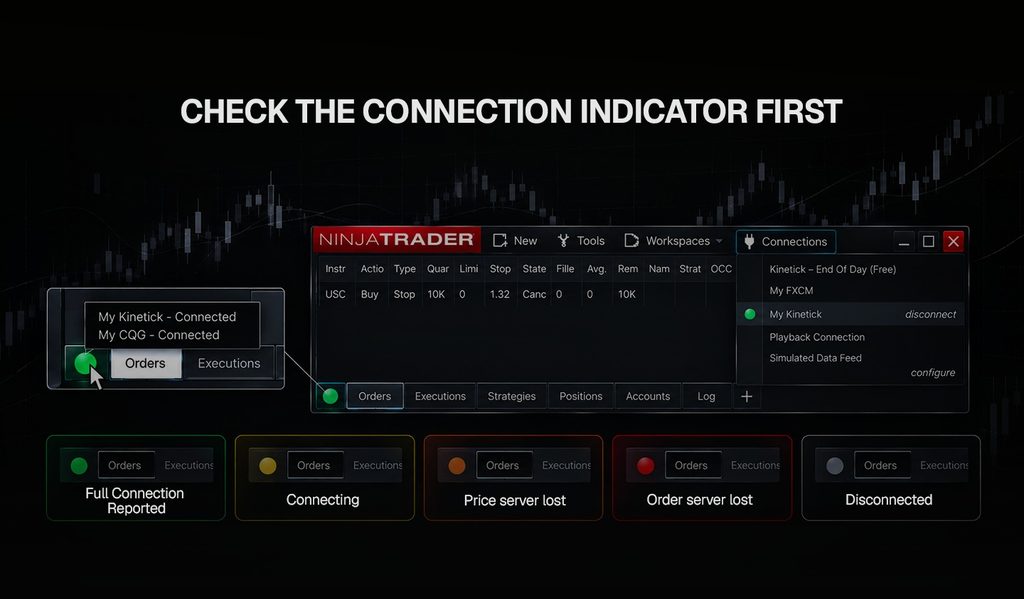
Before restarting anything, look at the connection indicator in the lower-left corner of the NinjaTrader Control Center. With multiple connections, hover over the indicator to see each provider separately.
NinjaTrader’s connection status page assigns a different meaning to each colour:
- Green means NinjaTrader reports a full connection.
- Yellow means it is trying to connect.
- Orange means the price-server connection is lost.
- Red means the order-server connection is lost.
- Grey means the connection is disconnected.
That distinction matters because each colour points to a different failing service. Orange points to market data, while red points to order routing. Prices may keep moving while the order service is unavailable, and order routing can stay available while the price feed is down. NinjaTrader’s OnConnectionStatusUpdate reference tracks order status and price status as separate states.
Follow this six-step check before changing connection settings or restarting anything:
- If money is at risk, confirm positions and working orders through the broker or trade desk.
- Record the time, connection name, indicator colour, instrument, and exact error.
- Open the Control Center Log tab before restarting.
- Check whether the problem affects prices, orders, or both.
- Check the relevant provider’s service status.
- Apply the fix that matches the failing layer.
Connection lost during a session
When a connection drops, the indicator turns orange (price server) or red (order server), and new entries appear in the Log. After it returns to green, confirm that prices and account information have recovered. Check every automated strategy before allowing it to submit another order.
NinjaTrader’s connection loss instructions recommend restarting NinjaTrader, the computer, and the router. They also cover Windows updates, connection settings, firewalls, antivirus tools, backups, and VPN software. These checks isolate the problem, but they do not prove its cause.
Determine the scope before changing any platform or network settings. If other applications also failed, investigate the local network first. If only one provider failed, check its status and connection settings. Separate price-feed loss from order-routing loss before testing any fix. Reinstalling NinjaTrader will not resolve a provider-wide incident.
Preserve the Log entry and timestamp before restarting the platform. A useful support request includes the exact timestamp, provider, platform version, error text, and whether the connection recovered by itself.
Automated strategies need a separate review after any connection loss. The ConnectionLossHandling setting controls how a NinjaScript strategy responds to lost connectivity. The default is Recalculate, which recalculates the strategy position when the connection is re-established. Under that setting, a strategy stops if the data feed stays down longer than DisconnectDelaySeconds, if the order feed drops and the strategy tries to place an order while it is down, or if both feeds stay down longer than the delay. KeepRunning resumes the strategy as if no disconnect happened, and StopStrategy stops it once a disconnect lasts longer than DisconnectDelaySeconds. Our NinjaTrader strategies article explains the wider automation process and testing steps.
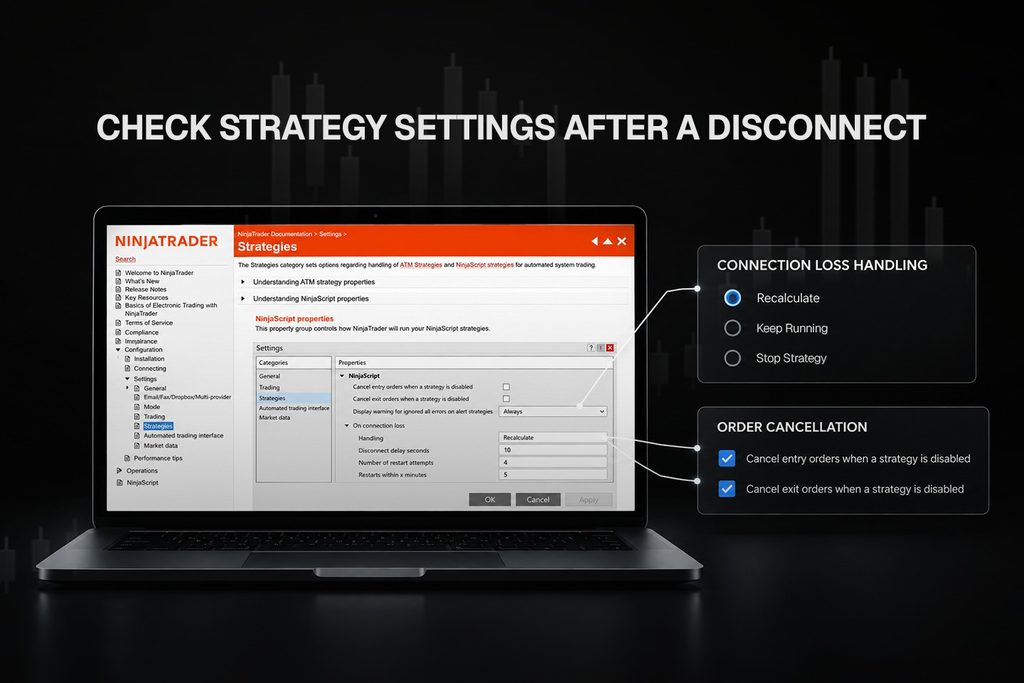
Those settings describe strategy behaviour, not where an accepted order sits. After reconnecting, confirm the strategy state, account position, and working orders before enabling automation again.
Contact the provider when the Log shows a rejection, server failure, or repeated closure that survives a clean restart and a test on another network. Contact NinjaTrader when the provider confirms normal service but the platform still shows errors.
What happens to working orders during a disconnect
This is the part of connection troubleshooting that carries direct financial risk. Losing the internet connection, closing NinjaTrader, or seeing a red indicator does not cancel an order that the broker or exchange has already accepted. Automated strategies are the exception to check, covered below.
Start with the order state in the Control Center Orders tab. NinjaTrader’s order state definitions describe Submitted as an order sent to the connectivity provider. Accepted means the broker confirmed it, while Working means the exchange confirmed it.
The official order-residency page describes how each supported connection handles orders:
| Connection type | Accepted or working orders | Unsupported order types | OCO behaviour |
|---|---|---|---|
| NinjaTrader | Brokerage or exchange | NinjaTrader servers | Most OCO functionality is simulated on the local computer |
| Continuum or CQG | Brokerage or exchange | Continuum servers | Most OCO functionality is natively supported on provider servers |
| Rithmic | Brokerage or exchange | Rithmic servers | OCO functionality is simulated on the local computer |
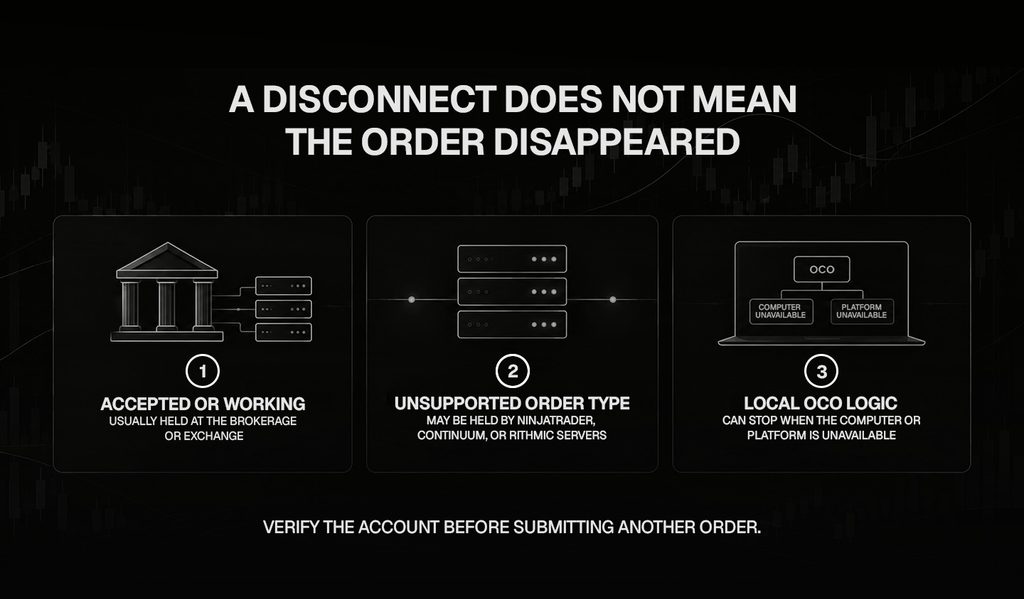
The same page warns about MIT orders and simulated orders in a TriggerPending state. These orders might not be recovered when the provider lacks native support, and their state can become Unknown after reconnection.
In practice, two linked orders can behave differently from one broker-held limit or stop order. A working stop can stay active at the exchange while the local OCO logic that would cancel its partner is unavailable. Automated strategies add one more condition to check. NinjaTrader’s strategy settings include “Cancel entry orders when a strategy is disabled” and “Cancel exit orders when a strategy is disabled”. Depending on those two options, disabling a strategy can cancel its working orders.
If the platform disconnects while you have a live position:
- Do not send a duplicate exit because the chart appears empty.
- Check the broker’s alternate platform or account portal if one is available.
- Contact the trade desk when you cannot verify the position or order state.
- Record the order ID, account, instrument, quantity, and approximate submission time.
- Reconcile the account position and working orders before restarting a strategy.
The order-residency page describes platform behaviour, but your broker should confirm the handling for your account and order type.
NinjaTrader reconnects, but prices remain frozen
The symptom is familiar: the connection light is green, but the DOM and chart have stopped moving. NinjaTrader does not publish one cause for every silent data freeze, and a restored status can appear while one chart receives no new data.
First check that the market should be moving, and note the latest trade timestamp. Then open a clean chart for a liquid, current contract without a template, custom indicator, or unusual bar type. If it moves, compare the original chart’s instrument, contract month, trading-hours template, data series, and indicators.
If the clean chart also stays frozen, complete these four checks:
- Inspect the individual provider in the Control Center.
- Check the Log for a feed, subscription, or instrument error.
- Confirm the current contract and the preferred real-time provider.
- Check provider status, then reconnect the affected connection once.
The Reload All Historical Data command requests fresh historical bars from the provider. It can fill a gap after an interruption, but it cannot make a broken real-time connection deliver new ticks.
Send log and trace files to NinjaTrader support when the problem returns despite normal provider status. Include the last correct market-data timestamp, because it separates a feed interruption from a closed trading session.
NinjaTrader is connected, but no live data appears
A connection can succeed even when the account is not entitled to the data the chart requests. A successful connection only confirms that NinjaTrader reached the selected provider. The subscription determines which exchanges, instruments, and data levels that provider sends.
Check these possible causes in order before changing platform settings.
The connection supplies only end-of-day data
The free Kinetick End-of-Day connection supplies only daily historical data. NinjaTrader’s Kinetick connection page says it excludes minute and tick data, so a successful login will not update an intraday futures chart.
The exchange is not included in the subscription
One exchange subscription does not grant every futures market or data level. Confirm the active subscription with the broker or data provider. If a specific exchange is missing while other markets work, entitlement is a stronger lead than a general platform failure.
The wrong provider has priority
With multiple connections, NinjaTrader may receive real-time and historical data from different sources. Review the preferred market-data connection settings and the order in which the connections were established.
The selected futures contract is no longer current
An old contract may have little activity or no useful real-time flow. NinjaTrader’s charting documentation recommends completing the contract rollover and checking whether the subscription covers the selected instrument.
The market is closed
No new trades during a closed session do not mean the feed failed. Check the instrument’s trading hours before restarting the platform or deleting data.
Use the clean-chart test described above, then move outward to subscription, provider, and connection checks if it still fails.
One chart or instrument stops updating
When most charts keep moving, treat the problem as instrument-specific until the evidence says otherwise.
Open the Data Series window and verify the instrument, contract month, interval, end date, days to load, and trading-hours template. NinjaTrader’s Working with Price Data page explains that these settings control what a chart requests and displays. A saved chart template can also override a trading-hours setting selected manually.
For futures, check the contract month before changing anything else. A contract that has expired stops receiving new trades, so its chart freezes even though the connection is fine.
Run the clean-chart test once, then restore the original components one at a time if the new chart works. If neither chart works but other instruments do, confirm that the subscription includes the exchange and symbol.
Historical data does not load or contains gaps
Historical data comes from the connectivity provider, not from one universal NinjaTrader database. The Data by Provider table shows which historical data types each provider supplies, including tick, minute, daily, bid, ask, and Tick Replay data. A request can fail when the provider does not supply that type, even while live prices work.
Start with the chart request itself. Check the contract, date range, days or bars to load, end date, interval, and trading-hours template. Then compare the requested data with the provider’s documented capabilities.
If the provider supports the data, right-click the chart and select Reload All Historical Data. NinjaTrader’s reload guide says the command reloads the base-interval data for every chart of that instrument and overwrites the locally stored copy.
If the chart loads only from the time you connected, the historical request may not be completing. Check the Log tab for provider errors, instrument-resolution errors, or subscription messages. Next, test a common instrument with a standard chart interval. If the problem affects every instrument, check the provider’s status before clearing caches or reinstalling the platform.
The same Data by Provider page warns that enabling “Record live data as historical” while also using a historical data provider can create gaps. If supported data still fails, send the provider a complete test record: the instrument, contract, interval, date range, time zone, and exact Log message.
Market data works, but orders fail
Live prices and order routing use separate services, so a moving chart proves only that market data is arriving. It does not confirm account access, available funds, trading permission, or order acceptance.
Read the exact rejection message in the Control Center Log tab. NinjaTrader’s order state definitions say a rejected order can fail locally, at the connectivity provider, or at the exchange. The wording and source of the rejection determine who can fix it.
The table below is general guidance for matching the rejection text to the right check.
| What the message points to | What to check | Who usually owns the answer |
|---|---|---|
| Real-time market data required | Data entitlement for the contract | Broker or data provider |
| Insufficient margin | Available funds, margin requirement, position size | Broker or evaluation firm |
| Invalid order parameters | Order type, quantity, price, time in force, contract | Broker or platform support |
| Price outside permitted bands | Current market, price limits, fast or wide conditions | Exchange through the broker |
| Trading permission or risk rule | Account permissions, product access, firm rules | Broker or evaluation firm |
| Order connection lost | Individual order-server status and provider logs | Connectivity provider or broker |
NinjaTrader’s page on market conditions, orders, and fills explains exchange price limits. An exchange can reject an order priced outside its permitted range, which is different from a platform failing to transmit it.
Do not respond to a rejection by repeatedly pressing Buy or Sell. Repeated submissions can create multiple accepted orders if the condition clears or the display was delayed. Record the order ID, error text, account, instrument, quantity, price, order type, and time. Contact the broker or trade desk when the rejection concerns a live account, margin, permission, position, or exchange response.
Rithmic connection problems
Rithmic has a session rule that explains some immediate NinjaTrader disconnections. Its connection guides state that a second application can disconnect the first when both use the same Rithmic data feed.
Rithmic provides a separate process for using more than one compatible application. Start R Trader Pro and select Allow Plugins before logging in. Connect the second platform through the Rithmic plugin, and keep R Trader Pro running for the whole session. Check Rithmic’s current guide, because its fields and systems can change.
NinjaTrader’s Rithmic evaluation connection guide adds a separate restriction: NinjaTrader Desktop cannot maintain two simultaneous Rithmic connections. That is different from connecting to two separate providers.
Provider choice also changes login, session, and platform behaviour, as our Rithmic and Tradovate comparison explains.
If Rithmic will not connect at all, check these account and session details:
- The username and password issued by the broker, FCM, or evaluation firm
- The selected Rithmic system or environment
- Whether R Trader Pro or another platform is already using the credentials
- Whether Plugin Mode is required for the intended setup
- Whether the account is active and permissioned by the issuing firm
Contact the broker or evaluation firm about credentials, activation, risk rules, and environment settings, and include the exact Rithmic error from the NinjaTrader Log. Contact platform support after the firm confirms the account and the provider service.
Tradovate connection problems
Tradovate and Rithmic accounts use different NinjaTrader connections with separate setup instructions. NinjaTrader publishes Tradovate Desktop instructions for brokerage accounts and separate Tradovate evaluation-service instructions for evaluation accounts. Follow the guide that matches the account issued by your broker or evaluation firm.
If Tradovate fails, confirm the account type, connection name, username, and password. Check whether Multi-Provider mode is required for your setup, then close other active sessions as a controlled test. Do not assume every Tradovate account has the same session limit. NinjaTrader’s Tradovate login issues page and the issuing firm’s rules are the references to check.
Platform support also differs. NinjaTrader’s Web prop firm connection guide covers Tradovate-based prop accounts on NinjaTrader Web and Mobile, while Rithmic-based accounts connect through NinjaTrader Desktop. If credentials work on one product but not another, check whether the account supports both. Send the issuing firm the exact Log error when support remains unclear.
CQG and legacy Continuum connection problems
Old setup guides can send users toward a connection that is no longer supported. NinjaTrader’s Transition Off NinjaTrader Continuum notice states that support for the NinjaTrader Continuum connection ended on 31 March 2026.
If a saved Continuum connection stopped working after that date, treat the connection method itself as the first suspect. Do not assume the password suddenly failed or that a firewall rule changed. Follow NinjaTrader’s current migration instructions and confirm the replacement connection with the account provider.
CQG can still appear in broker-specific arrangements with their own entitlement and session rules. Record the exact connection name, the issuing broker or FCM, and whether the account uses an older approved connection. Then copy the complete provider error from the Log before contacting support.
The order-residency page still explains Continuum and CQG order handling, but it does not prove that NinjaTrader still supports a legacy login.
Contact the broker when CQG credentials sit outside NinjaTrader’s standard connection. The broker can confirm whether the connection remains permitted and identify any blocking session or required setup.
Kinetick connection problems and upstream outages
Kinetick offers two different connections. The free End-of-Day service supplies historical daily data, while real-time access requires a subscription. Confusing the two can produce a successful connection with no intraday tick or minute data.
NinjaTrader’s Kinetick setup page says Multi-Provider mode must be enabled to use Kinetick alongside other providers.
When real-time Kinetick stops, first check the NinjaTrader service-status page and confirm that ordinary internet access works. Determine whether every instrument or only one exchange is affected. Review the Log, reconnect once, and test an entitled instrument.
A listed incident points upstream, and local chart changes cannot restore that service. If no incident appears, confirm whether only your account fails. Send Kinetick the connection time, instrument, exchange, and Log message. Include your username, but never put your password in a support message.
Login failures and session conflicts
Login errors are often grouped together even though they come from different systems. A NinjaTrader account login, broker connection, Rithmic connection, and Kinetick connection can each use different credentials.
Begin with the exact connection name and confirm that the username belongs to that provider. Also verify that you selected the correct live, simulation, or evaluation environment. Re-enter the credentials, and test the provider’s own portal when one is available.
NinjaTrader publishes a specific cause for “Invalid token” or “Logon failed”. Its Invalid token page attributes the error to an unsynchronised Windows clock. Close NinjaTrader, open the Windows date and time settings, and select Sync now. Restart NinjaTrader, then reload historical data if the chart contains gaps.
Using the same credentials on two machines depends on the provider. Rithmic publishes the simultaneous-application restriction covered above, while other providers and firms set their own session policies. If closing the second session restores the first, record that result and ask the account provider for its policy.
Do not publish usernames, account numbers, tokens, or trace files in a public forum. Send sensitive connection evidence only through the provider’s official support channel.
Firewall, antivirus, VPN, and local network interference
Security and network software can interfere, but each suspected cause needs a controlled test. NinjaTrader’s connection loss instructions recommend an exception for the Documents\NinjaTrader 8 folder in firewall, antivirus, and backup software, and disabling the VPN temporarily as a test.
Preserve the logs first, then confirm that Windows Firewall permits NinjaTrader. Add only the documented folder exception before testing the affected connection. Test one provider, then restore normal security protection immediately afterwards.
Never leave antivirus or firewall protection disabled after the test. If disabling one product restores service, create the narrowest supported exception, and ask the security vendor for the correct rule when that remains unclear.
Cloud backup software can lock files under Documents\NinjaTrader 8. NinjaTrader’s installation guide recommends excluding that folder from backups to prevent file-access conflicts.
To separate the computer from the local network, test another trusted connection, such as a wired connection or a mobile hotspot. If the same provider fails on two networks while other services work, the evidence moves away from the home router.
Windows updates and clock drift
A Windows update does not prove causation, but its timestamp can help frame the investigation. The update may require a restart, reset a network component, or coincide with a security-software change. Check the Windows update history and the NinjaTrader Log before assigning the cause.
Microsoft’s Windows Update FAQ says some updates need a restart, and Windows lets users schedule restarts or set active hours. Place each restart outside trading hours, then open NinjaTrader and verify every required connection before trading.
After an update, complete every pending restart and confirm that automatic time synchronisation is on. Check each provider separately, then review Windows Firewall permissions after any network-profile change.
Clock drift deserves attention because NinjaTrader links it to invalid-token failures. The displayed hour may look correct while the system clock is still out of sync. Use Windows Sync now instead of changing the visible time manually.
How to read NinjaTrader log and trace files
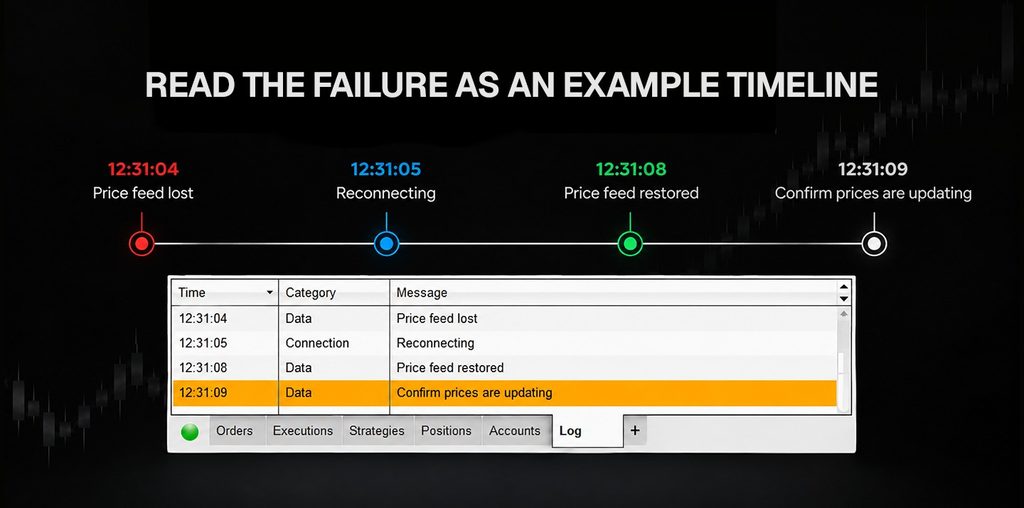
The Log tab often identifies which system reported the failure: NinjaTrader, the provider, the broker, or the exchange.
Open the Control Center and select Log, which shows the current day’s application and trading events. NinjaTrader’s Log tab documentation groups events into Information, Warning, Error, and Alert levels.
Start with the exact failure time, because the surrounding sequence matters more than one isolated message.
For each connection problem, record the following before contacting support:
- Timestamp and configured time zone
- Connection and provider name
- Price-feed or order-feed wording
- Error code and complete message
- Account and instrument, with sensitive details removed from public copies
- The action taken immediately before the event
- Whether the connection recovered automatically
Trace files contain deeper diagnostic information and sit in the Documents\NinjaTrader 8\trace folder. The log and trace submission page explains how to send them to NinjaTrader support.
Do not infer a cause from one familiar term such as “socket”, “timeout”, or “WebSocket”, because each needs context. Send the file with the observed symptom and exact timestamp.
Never post complete trace files publicly, because they can expose account, provider, path, and environment details.
When to contact NinjaTrader, the broker, or the data provider
Sending the problem to the correct company shortens the investigation. The visible error may appear inside NinjaTrader even when the account provider or exchange rejected the action.
| Problem | First contact | Evidence to include |
|---|---|---|
| Platform will not open, display, or preserve a supported connection | NinjaTrader support | Platform version, screenshot, log and trace files |
| Position, working order, rejection, margin, permission, or unexpected fill | Broker or trade desk | Account, order ID, instrument, time, exact message |
| Missing real-time or historical data for entitled instruments | Data provider | Subscription, exchange, symbols, timestamps, Log message |
| Rithmic credentials, evaluation account, or risk rules | Broker or evaluation firm | Environment, connection name, error, account type |
| Confirmed provider outage | Provider status channel or support | Time, region, connection, affected services |
| Live position cannot be verified or managed | Broker or trade desk immediately | Account, instrument, quantity, known orders |
Begin with the company that controls the failed function, not the company displaying the error. Brokers control live accounts and order permissions, data providers control entitlements and feed delivery, and NinjaTrader controls the platform, its connection adapters, and its diagnostic tools.
Which connection problems a hosted Windows machine can fix
Hosting helps only when the failure comes from the trader’s home environment. If NinjaTrader runs on a hosted machine, it can keep running through a home power cut or internet outage. The trader may lose access for a while, but the hosted Windows session can stay active.
Hosting cannot repair provider incidents, broker outages, bad logins, or expired subscriptions. It also cannot correct session restrictions, rejected orders, wrong contracts, or faulty strategies, and a misconfigured firewall can interrupt a hosted machine just as easily.
The deciding question is whether NinjaTrader’s local logic must keep running while you are away. On the NinjaTrader and Rithmic connections, the order-residency table above shows OCO being simulated on the local computer, so the machine running NinjaTrader matters. If home power, internet, or hardware keeps failing, the NinjaTrader VPS page explains how a hosted setup works.
Frequently asked questions
First check the Log timestamp and each provider’s individual status. NinjaTrader’s connection loss instructions cover restarts, updates, security exceptions, and VPN testing. If Rithmic drops when another application opens, check Rithmic’s session rules. If every application loses internet access, investigate the local network.
An active connection does not confirm every data entitlement, and the chart may be using the wrong provider or an expired contract. Test a clean chart on the current contract, then confirm the subscription and the preferred data connection. The free Kinetick End-of-Day connection does not include real-time minute or tick data.
Check whether the market is open and whether other instruments are moving. If one chart freezes, verify its contract, trading-hours template, interval, and indicators. NinjaTrader’s charting documentation supports testing a clean chart on the current contract. If every chart stops, inspect the provider status and the Log.
Historical availability depends on the provider and the requested data type. Check Data by Provider, then verify the contract, interval, date range, and trading-hours template. If the request is supported, use Reload All Historical Data. Escalate repeated failures across clean charts with the request details and the Log message.
A moving chart does not confirm that the order connection or account is ready. Read the complete rejection in the Log, which may point to margin, permissions, risk rules, data, parameters, or exchange price bands. Do not resubmit the order repeatedly while the rejection is unresolved. Record the order details and contact the broker or trade desk.
Accepted or working orders may remain at the brokerage, provider, or exchange. Some OCO and simulated-order logic runs locally, so check NinjaTrader’s order-residency page for your connection type. If you cannot verify the account, contact the trade desk before submitting another order.
One documented cause is another application connecting to the same Rithmic feed. If you need more than one compatible application, follow Rithmic’s Plugin Mode instructions. Confirm the selected environment and close any other Rithmic sessions. If no second session exists, send the Log error to the firm that issued the credentials.
Do not assume one login supports two simultaneous direct sessions. Rithmic says a second application can disconnect the first, and NinjaTrader says Desktop cannot maintain two simultaneous Rithmic connections. Ask the issuing firm whether your intended setup is allowed, and use Plugin Mode only where the provider supports it.
Identify whether the saved connection uses NinjaTrader Continuum or a broker-specific CQG arrangement. NinjaTrader ended Continuum support on 31 March 2026, so an old configuration may need migrating. For broker-specific CQG access, record the connection name and the Log error, then ask the broker whether the credentials and session remain permitted.
Check the NinjaTrader service-status page, then determine whether all Kinetick instruments or only one exchange is affected. If an incident is listed, wait for the provider update. If no incident appears and only your account fails, send Kinetick the time, instrument, exchange, and Log message.
Check its ConnectionLossHandling setting first. Under the default, Recalculate, a strategy stops if the data feed stays down longer than DisconnectDelaySeconds, or if the order feed drops while it tries to place an order. StopStrategy stops it once a disconnect lasts longer than that delay. Check the Log, reconcile the strategy position with the account position, and review the two cancellation settings before enabling it again.
NinjaTrader’s Invalid token page attributes this message to an unsynchronised computer clock. Close NinjaTrader and select Sync now in the Windows date and time settings. Restart the platform once Windows confirms the sync. If the message remains, send support the timestamp and the Log entry.