
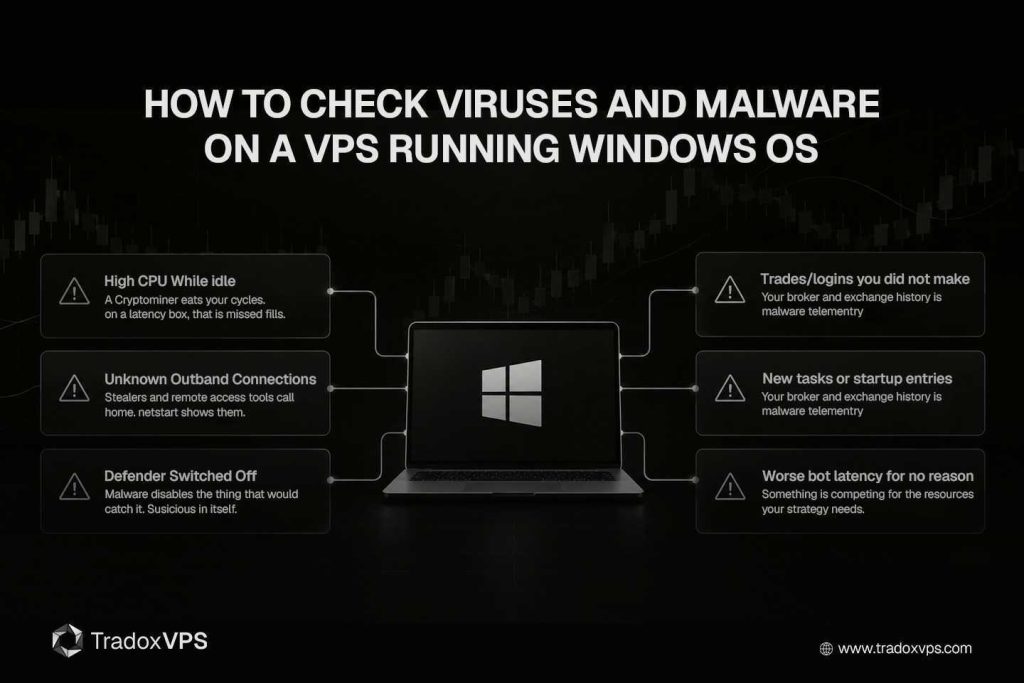
If you run trading platforms or bots on a Windows VPS, “is this thing infected?” is a question worth being able to answer properly, not with a vague “run an antivirus and hope.” A trading VPS is a specific kind of target: it holds broker logins and API keys, it runs unattended, and its spare CPU cycles are worth stealing. This guide shows you how to actually check, using commands you can copy and paste, what an infection looks like on a trading box specifically, and a clear decision tree for what to do when something shows up.
Two honest notes first. Detecting malware is about stacking evidence, not one magic scan: a single tool can miss things, so we use several cheap checks together. And if you find a real infection on a machine that is logged into your broker and holds API keys, the priority is not “clean it,” it is “protect the money, then rebuild.” We come back to that at the end.
First, why would a trading VPS be infected at all?
You do not catch malware on a well-run VPS by accident; something introduces it. On trading machines, the usual routes are specific, and knowing them tells you where to look:
- A cracked or “free premium” EA, indicator, or bot. The single most common source. That .ex4, .ex5, or downloaded bot is a program you chose to run on the box logged into your broker.
- A poisoned “trading tool” download. Fake bot repositories, trojanized “MEXC/Binance automation” browser tools, and cracked-software bundles have all been documented targeting traders specifically in the past year.
- Using the VPS like a personal PC. Browsing, opening email, downloading random utilities on the trading box. Almost every infection path needs exactly this casual usage.
- Reused or weak credentials. If someone logs in as you over RDP, they can install whatever they like, and it will not look like an “infection” at all.
If none of those apply to your box, the odds it is infected are low, and a clean scan will usually confirm it. If one or more do apply, this guide is exactly what you want.
The signs a trading VPS is actually infected
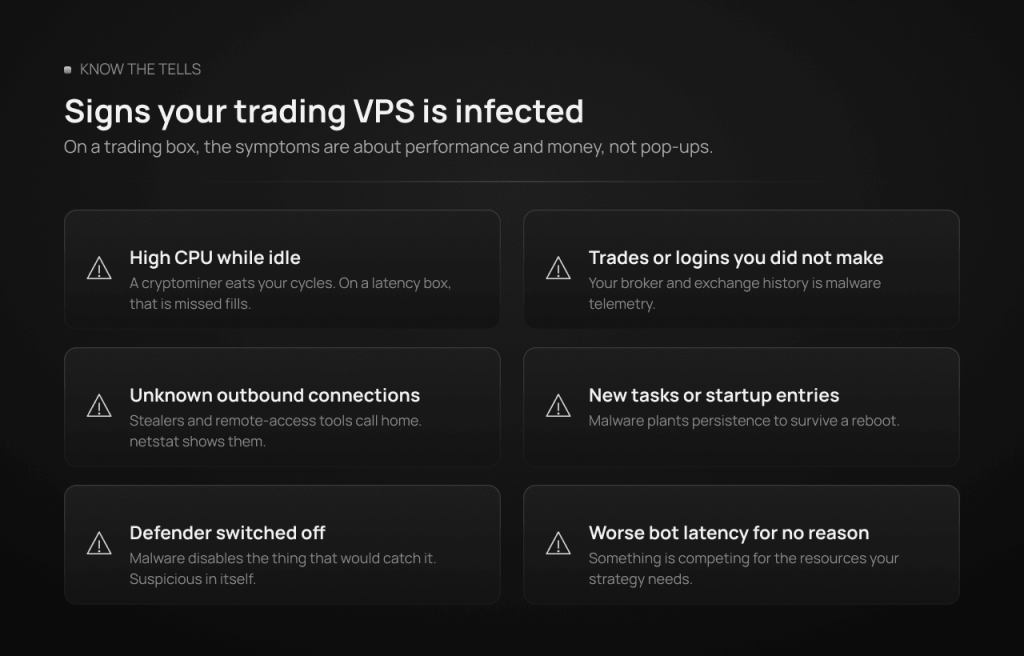
Generic malware guides list generic symptoms. Here is what infection looks like on a trading machine, where the tells are often about performance and money rather than pop-ups:
- It runs hot for no reason. A cryptominer is the most common infection on a stolen VPS, because your CPU is the product. If CPU sits high while your platforms are idle, or your bot’s latency and execution quietly get worse, a miner eating your cycles is a prime suspect. On a latency-sensitive trading box, that is not just a bill, it is missed fills.
- Logins or trades you did not make. Your broker statement and exchange history are malware telemetry. An order you did not place, an API call pattern you do not recognize, or a login from a new location is a louder signal than anything on the desktop.
- Outbound connections to places you do not recognize. Stealers and remote-access tools “call home.” Unexpected, persistent outbound connections are one of the clearest signs, and we check for them below.
- New processes, scheduled tasks, or startup entries you did not create. Malware wants to survive a reboot, so it plants persistence. That is exactly what the checks below look for.
- Defender turned off, or security tools that will not open. Malware often tries to disable the very thing that would catch it. If Defender is mysteriously off or its interface will not load, treat that as suspicious in itself.
- Files renamed or a ransom note. The obvious, worst case. Less common on a lean trading box, but it is why you keep configs backed up off the machine.
None of these alone proves an infection (a heavy backtest also spikes CPU). Two or three together is your signal to run the checks properly.
Step 1: Make sure Defender is actually on and current
Microsoft Defender is built into Windows Server and is a capable scanner for a well-behaved trading box. But a “clean” result only means something if the scanner is actually running and its definitions are fresh, so verify that first. Open PowerShell as Administrator (right-click, Run as administrator) and run:
Get-MpComputerStatus | Select-Object AMRunningMode, RealTimeProtectionEnabled, AntivirusSignatureLastUpdated
You want RealTimeProtectionEnabled : True and a recent signature date. If the date is old, update before you scan, because stale definitions miss fresh campaigns:
Update-MpSignature
And confirm the service itself is running (malware sometimes kills it):
Get-Service WinDefend | Format-List Status, StartType, Name
If Defender is disabled and will not turn back on, or the service will not start, that is itself a red flag: something may be suppressing it. Skip ahead to the offline scan in Step 3, which runs from outside Windows where malware cannot interfere.
Step 2: Run the scans (quick, full, and command-line)
Defender offers three scan types, and they trade speed for depth.
- A quick scan checks the places malware registers to start (registry run keys, startup folders, memory). Microsoft’s own guidance is that for most cases a quick scan, combined with always-on real-time protection, is sufficient. Start here.
- A full scan reads every file on the disk. Slower, but worth it when you already suspect something. On a trading VPS, run it in a quiet window (weekend for FX and futures; a low-activity slot for 24/7 crypto), because a full scan is CPU-heavy and will compete with your platforms.
From the GUI: Windows Security → Virus & threat protection → Scan options → Full scan → Scan now. Or drive it from PowerShell so you can script it:
Start-MpScan -ScanType QuickScan
Start-MpScan -ScanType FullScan
You can also target a specific folder, which is useful for checking a freshly downloaded EA or bot before you trust it. Point it at your MT4/MT5 folder or your bot directory:
Start-MpScan -ScanType CustomScan -ScanPath "C:\Users\Administrator\AppData\Roaming\MetaQuotes"
When a scan finishes, read what it actually found rather than trusting a green tick:
Get-MpThreatDetection | Select-Object DetectionTime, ThreatName, ActionSuccess, Resources | Format-List
That returns each detection, what it was, whether the action succeeded, and which file was involved, which is exactly what you need to judge severity.
Step 3: Run an offline scan for the things that hide
Some malware, rootkits and the more capable stealers, actively hide from a scanner running inside Windows. Microsoft Defender Offline solves this: it reboots the machine and scans from a trusted environment outside the normal Windows kernel, where malware cannot cloak itself or block the scan. It takes roughly 15 minutes and restarts the box, so run it in a window where a reboot is safe (stop your bots gracefully first). Trigger it from PowerShell:
Start-MpWDOScan
Or from the GUI: Scan options → Microsoft Defender Offline scan → Scan now. This is the scan that catches what the others miss, and it is the one most people skip. If your earlier quick scan flagged something but full scans came back clean, the offline scan is exactly how you resolve the disagreement.
For a genuine second opinion from a different engine, the Microsoft Safety Scanner (MSERT) is a free, standalone, on-demand tool from Microsoft that you download fresh and run once. Because it is a separate scanner, it can catch things Defender’s engine rates differently. It is a download-and-run tool, not an install, which makes it a clean way to get a second verdict without stacking a permanent second antivirus (never keep two real-time antivirus products running at once; they fight).
Step 4: Check running processes yourself
Scanners catch known malware. To catch the unknown, look at the machine directly, and the first place is what is actually running. Open Task Manager (Ctrl+Shift+Esc) and sort by CPU. On a trading box you should recognize almost everything: your terminals, your bots, Windows itself. What you are hunting for is a process you do not recognize eating CPU while your platforms are idle, or one with a random-looking name running from an odd location.
Task Manager hides file paths, though, and the path is often the tell. This one-liner lists every running process with its executable location:
Get-Process | Where-Object {$_.Path} | Select-Object Id, ProcessName, Path | Sort-Object Path | Format-Table -AutoSize
Legitimate programs run from C:\Program Files, C:\Windows, or a platform’s own folder. Be suspicious of anything executing from AppData\Roaming, AppData\Local\Temp, C:\Users\Public, or ProgramData with a random name: those are classic malware hiding spots. If a process looks wrong, get its file hash and check it against the world’s antivirus engines at once via VirusTotal (paste the hash, do not upload the file unless you accept it becomes public):
Get-FileHash "C:\path\to\suspicious.exe" -Algorithm SHA256
A hash that VirusTotal flags across multiple engines is your answer. A hash nobody has ever seen, in a suspicious location, is also worth taking seriously.
Step 5: Check what the box is talking to
A stealer or remote-access tool has to communicate, so its connections betray it. In an elevated Command Prompt or PowerShell, list active connections with the owning process ID:
netstat -ano | findstr ESTABLISHED
Every row is a conversation your VPS is having. On a clean trading box, these should resolve to things you expect: your broker, your exchanges, your data feeds, Microsoft. Note the PID (last column) of anything unfamiliar and match it back to a process:
Get-Process -Id <PID>
An established connection from an unknown process to an unfamiliar IP, especially one that persists, is one of the strongest single indicators of an active infection. (This, incidentally, is a quiet advantage of a VPS with a dedicated IPv4: your outbound traffic is yours alone, so you are reading your own connections, not sharing a reputation or a noisy neighbor’s traffic.)
Step 6: Check persistence (how malware survives a reboot)
Malware that only lives in memory dies on restart, so almost all of it plants a way to relaunch. Three places cover the vast majority. First, the auto-run registry keys:
reg query "HKCU\Software\Microsoft\Windows\CurrentVersion\Run"
reg query "HKLM\Software\Microsoft\Windows\CurrentVersion\Run"
Second, scheduled tasks, a favorite for cryptominers that relaunch on a timer:
schtasks /query /fo LIST /v | more
Read the task names and the actions they run; a task pointing at an executable in a temp or AppData folder is a red flag. Third, for a thorough view, download Autoruns from Microsoft’s Sysinternals suite, run it as administrator, and it shows every program set to start automatically, across dozens of locations, in one window. Autoruns even has a built-in option to check entries against VirusTotal, which turns “what is all this?” into a ranked list of what to worry about. It is the single best free tool for this job.
Finally, check the door itself, your login history, since an attacker who logged in as you leaves no “virus” to scan for. Windows records failed logons as Event ID 4625 and successful ones as 4624 (logon type 10 is remote/RDP):
Get-WinEvent -FilterHashtable @{LogName='Security'; Id=4624} -MaxEvents 20 | Where-Object {$_.Message -match "Logon Type:\s+10"} | Select-Object TimeCreated, Message | Format-List
A successful RDP login at a time you were not working, or from an IP that is not yours, means the problem is not malware at all, it is that someone has your password, and the response is different (change credentials immediately, from a clean device).
Reading the results: a simple decision tree
You have run the scans and the manual checks. Now judge what you have.
Everything clean, no odd processes, connections, tasks, or logins. Good. Your box is very likely fine. Bank the peace of mind, and turn to prevention (below) so it stays that way. A clean offline scan plus clean process, network and persistence checks is about as much confidence as you can reasonably get.
Defender found and removed something low-level (adware, a PUA, a single quarantined file) and nothing else looks wrong. Let it quarantine, do not restore the item, run one more full scan and the offline scan to confirm, and watch the box for a day. Often that is the end of it.
Something serious, or several signals at once: a real trojan or stealer, an unknown process with a live outbound connection, persistence you did not create, or a login that was not you. On a machine that holds broker and exchange access, do not try to surgically “clean” it and carry on. You can never fully trust a compromised box again, so the correct move is to protect the accounts and rebuild. That is the next section, and it is the most important part of this guide.
If you find a real infection: protect the money, then rebuild
The instinct is to clean the machine. On a trading VPS that is the wrong first move, because while you are cleaning, the credentials on that box are still exposed. Do this instead, in order, and do the account steps from a clean device (your phone or home PC), not from the VPS you no longer trust:
- Broker first. Change your master and portal passwords, and flatten any position you did not open.
- Revoke every exchange API key the box held, then check balances and open orders. Recreate keys later, on the clean rebuild, withdrawal-disabled and IP-whitelisted.
- Move on-chain funds. For Solana or Polymarket bots, sweep the bot wallet to a fresh key that never touched the VPS.
- Secure your email, the recovery path for everything else, and check it for silent forwarding rules.
- Rebuild the VPS from a fresh image rather than cleaning it. This is the honest recovery for any serious compromise: wipe, redeploy clean, restore your backed-up configs and set files, generate new credentials, re-whitelist. Fast redeploy is exactly what this situation is for. Then work out how it got in (the checks above usually tell you) so the rebuild does not repeat it.
The full incident runbook, with the reasoning behind each step, lives in our security guide. If you have reached this point, read it next.
The point most guides miss: detection is not prevention
Everything above tells you whether your VPS is infected right now. It does nothing to stop the next one. The two are different jobs, and a box you scan monthly but leave wide open will simply get reinfected. Prevention is the larger topic: hardening RDP, using unique passwords with an account-lockout policy, disabling withdrawal permission on API keys, never running cracked EAs, running the VPS as a single-purpose trading machine rather than a personal PC. We cover all of that, with the real 2026 threat data behind it, in the companion guide: VPS Security Best Practices for Trading Automation. Scanning is how you check the locks; that guide is how you fit them.
And a note on where responsibility sits: your VPS provider secures the layer you cannot reach, the data center, the host, the network, DDoS mitigation at the edge (TradoxVPS uses Path.net), and customer isolation with dedicated RAM per VPS. Inside the operating system, the scanning, the software you install, the credentials, that half is yours. This guide is your half.
A sensible routine (so you are not doing this in a panic)
You do not need to run every check weekly. A light, regular rhythm catches problems early without becoming a chore:
- Monthly: a Defender quick scan and a two-minute glance at Task Manager and
netstat. Five minutes total. - Before trusting any new EA, bot, or tool: a custom scan of its folder, and a look at what it wants to connect to.
- The moment anything feels off (CPU high at idle, worse latency, an unfamiliar login alert, an order you did not place): run the full sequence above.
- After any suspected incident: offline scan, or rebuild if anything serious turned up.
Make the monthly check a calendar entry. Malware found in month one is an inconvenience; malware found after it has been quietly trading or mining for months is a real loss.
Final takeaway
Checking a Windows VPS for malware is not guesswork once you know the moves: confirm Defender is on and current, run quick, full, and offline scans, then look at the machine yourself, the processes, the connections, the persistence, and the login log. On a trading box, weight the signals that involve performance and money, because that is what attackers are after. If everything is clean, you have earned real peace of mind; if something serious turns up, protect your accounts from a clean device and rebuild rather than scrub. Then close the loop by fixing prevention, because a scan tells you about today, and good security habits are what protect tomorrow.
Frequently asked questions
Everything you need is built into Windows Server. Run a Defender quick scan (Start-MpScan -ScanType QuickScan), then a full scan and an offline scan (Start-MpWDOScan) if you are worried, and add the free Microsoft Safety Scanner (MSERT) for a second opinion. Then check processes (Get-Process), connections (netstat -ano), and startup entries (Autoruns from Sysinternals). No paid antivirus is required.
On a trading box the common tells are high CPU while platforms are idle (often a cryptominer), worsening bot latency, broker logins or trades you did not make, unexpected outbound connections, new processes or scheduled tasks you did not create, or Defender being switched off. One alone is not proof; several together are your signal to investigate.
For a well-run, single-purpose trading VPS, yes. Kept on and updated, Defender is a capable scanner, and its offline scan handles the stealthier threats. The bigger protection on a trading box comes from good habits (no cracked EAs, hardened RDP, withdrawal-disabled API keys), not from a second antivirus. Do not run two real-time antivirus products at once.
It might be, but check the innocent explanations first: a running backtest, a heavy EA, or many charts and terminals all tick the CPU. Open Task Manager, sort by CPU, and identify the process. If it is a program you do not recognize, running from an odd folder, with a live outbound connection, then suspect a miner and run the checks above. If it is your own platform, you may just need a larger plan.
For anything serious on a machine that holds broker or exchange access, reinstall. You cannot fully trust a compromised box, so the safe path is to protect your accounts from a clean device (change broker passwords, revoke API keys, move wallet funds), then rebuild the VPS from a fresh image and restore your configs. Cleaning in place is only reasonable for a single low-level item that Defender has already quarantined.
That is precisely what the trader-targeted malware of the past year was built to do: harvest API keys, steal wallet files, or capture logins. It is why withdrawal permission on exchange keys should always be disabled, why on-chain bots should use dedicated minimal-float wallets, and why the master password never belongs on a shared or careless machine. Detection matters, but those preventive controls are what limit the damage.
Disclaimer: TradoxVPS provides infrastructure only and does not provide investment, trading, or professional security advice. Commands and tools referenced are from Microsoft’s official documentation and current operator guidance as of mid-2026; verify against your platform’s and Microsoft’s current documentation before relying on them.